
What PwrGit is
These pages describe PwrGit 0.32.0 and later. The version you are running is in Settings → About and Settings → Updates.
PwrGit is a desktop git client for macOS, Windows and Linux, built around three things most clients treat as edge cases: worktrees, hundreds of repositories, and more than one commit identity on one machine.
It ships its own Git and Git LFS, so a fresh machine needs nothing else installed — and you can point it at your installed Git instead. It reads GitHub, GitLab and GitCafe through the CLI you already sign in with, and stores no forge token of its own.
The window is three panes. A sidebar listing every repository it has indexed, each expanding into its worktrees, pull requests, branches, tags and remotes. A lineage graph for whichever worktree you selected. A rail on the right holding that worktree’s changes, or the files of a commit you clicked.
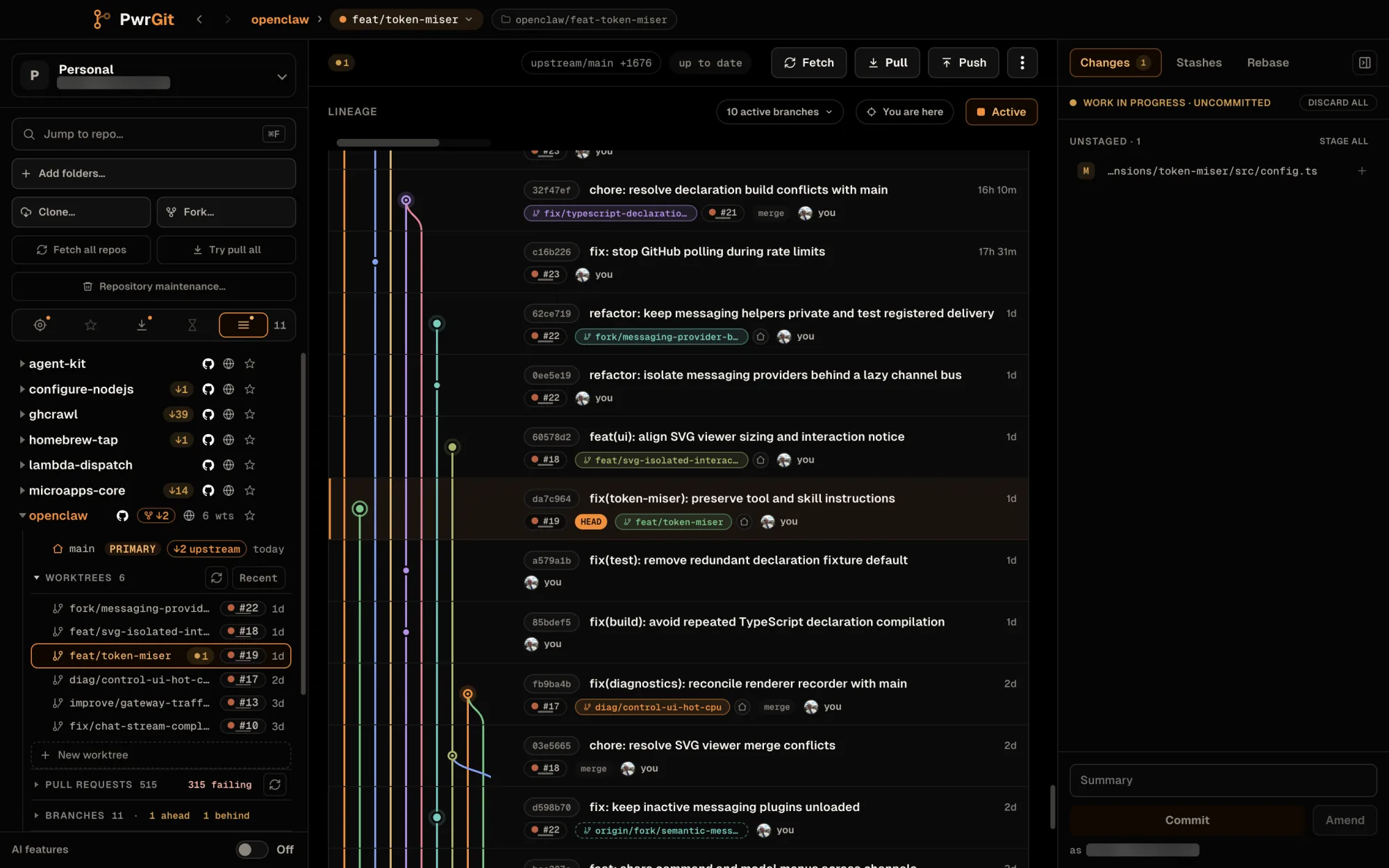
The parts you will use every day
- Command+K finds anything. Ctrl+K on Windows and Linux. One box searches repositories, worktrees, local and remote branches, open pull and merge requests by number or title, commits, and tracked files. Back and Forward then retrace where you have been. See Search and navigation.
- Incoming and outgoing counts without opening anything. Every repository and worktree on screen carries how far it is behind and ahead of its remote, kept current by a batched check that asks each remote once and fetches only the branches that moved. See Remote status.
- Fetch, Pull and Push say what they did. Each opens a status card that stays as a receipt — Git’s output, a stall warning, Cancel — and Fetch all repos / Try pull all run a whole profile with per-worktree progress and a result summary. See Operation status cards and Fetch all repos and Try pull all.
- Forks are handled, not tolerated. Clone the original or your fork, fork a checkout in place, Switch origin to my fork, pull from the source and update the fork, and repair a branch still tracking a repository you cannot push to after a push is refused. Each change draws the route — where the branch pulls from and pushes to — before it runs. See Forks and Forks — pulling from the source.
- Pull and merge requests in the sidebar. Each repository lists its open requests across every forge remote, including the ones your fork sent upstream, and opens any of them in an in-app request view — files and commits — without checking it out. See Pull requests.
- GitHub, GitLab, and their self-hosted versions. GitHub and
GitHub Enterprise through
gh, GitLab.com and self-managed GitLab throughglab. PwrGit never asks for a password. See Forges. - Agents can look, not write. An opt-in, OAuth-protected local MCP server lets a coding agent read your profiles, repositories and worktrees and ask PwrGit to navigate, through named sessions you can revoke. See MCP.
- Linux is a first-class build. DEB, RPM, pacman and a portable tar.gz, each for x64 and arm64, with in-app updates for the native packages. See Install → Linux.
- Bundled Git, or yours. The bundled runtime is the default and needs no setup; Settings → Git runtime switches to an installed Git with LFS and shows which one is active. See Git runtime.
- AI features are opt-in, per profile. Off until you turn them on. When on, your own installed Codex drafts commit and squash messages and proposes a Tidy plan for selected commits, which PwrGit checks in an isolated copy before you choose to apply it. PwrGit holds no provider key. See AI features.
- Cleanup in one pass. Repository maintenance… reviews worktrees that are safe to prune, removes local branches whose upstream is gone — with a Restore — and runs Git’s garbage collection, across one profile or all of them. See Maintenance.
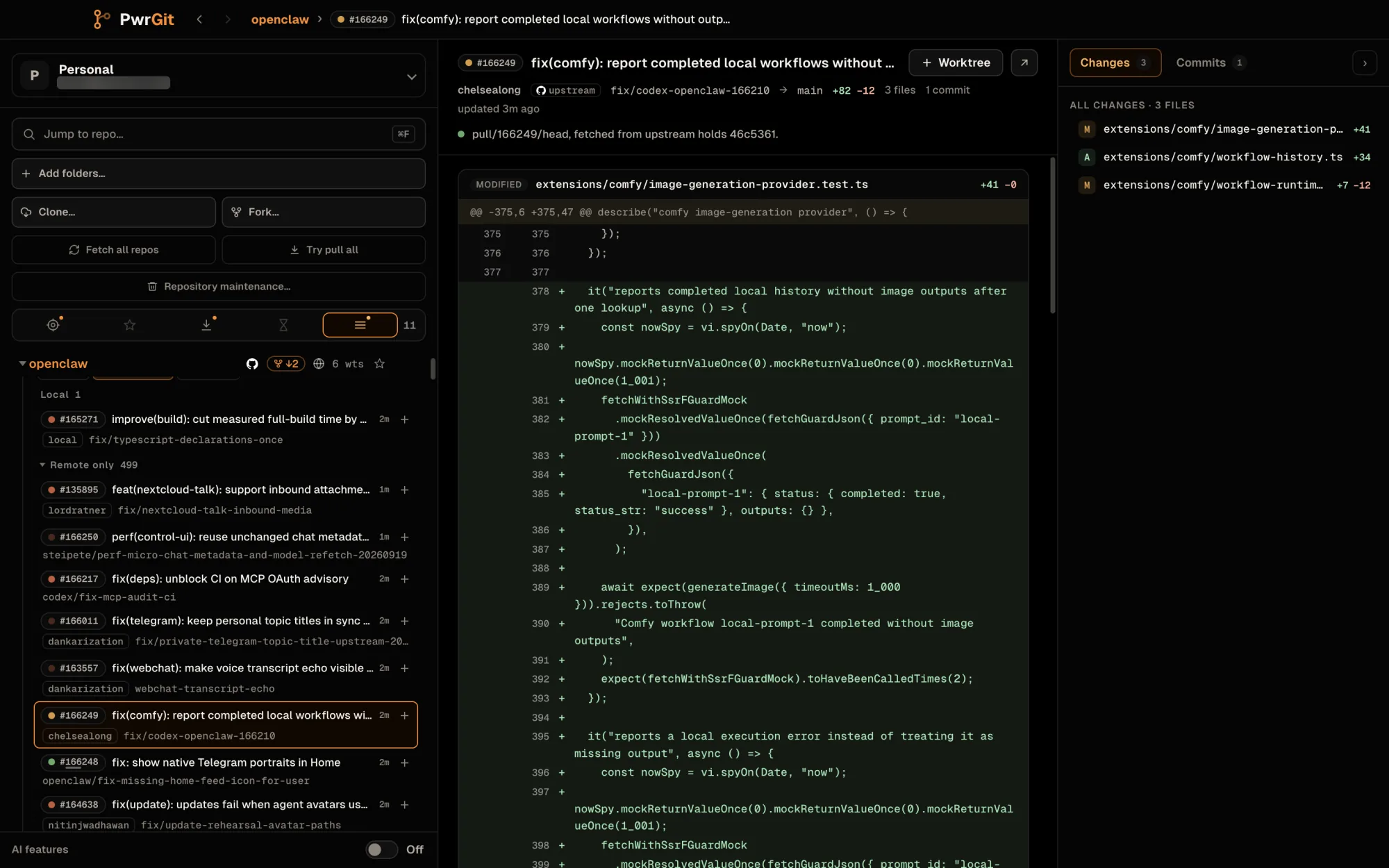
What it is built around
- Worktrees are the unit of work, not branches. A repository expands into the worktrees checked out from it, and selecting one is what changes the graph, the changes list, and the sync buttons. PwrGit also finds worktrees you made in a terminal. See Worktrees.
- Profiles carry a commit identity. A profile is a workspace:
its own repo folders, its own window, and its own commit email.
Commits apply that email per invocation, so PwrGit never
rewrites a repository’s local
user.emailto do it. See Profiles. - The graph draws fetched work, not just local work. A branch that is behind its upstream has commits no local ref reaches. PwrGit draws those dashed, so a branch that needs a pull looks different from one that is current. See History.
- Pull is fetch plus fast-forward. It is not a merge, and it will not create one. When the branch has diverged you get a dialog naming both sides and offering rebase or reset. See Sync.
Squash and reorder are checked before they run
Selecting commits in the graph and choosing Squash or Reorder builds a plan you can read — the pick/squash list, in the order it will execute — and runs it against a throwaway copy of the worktree first. You approve the plan only after that dry run reports whether it applies cleanly. This needs no agent and works with AI features off.
A rebase rewrites local history only; pushing it is still a separate, explicit step. See Squash and reorder.
Get started
- Install — macOS, Windows and Linux builds, first launch, update trains, uninstall.
- Repositories — profiles, repo folders, the sidebar, lenses, clone, remotes, repository setup.
- Search and navigation — the Command Palette, Back and Forward, You are here.
- Worktrees — creating them, reading their rows, finding the ones worth pruning.
- History — the lineage graph, branch chips, commit details, the diff pane.
- Changes — staging, committing under the right identity, amend, discard, squash and reorder.
- Sync — fetch, pull, push, remote status, forks, divergence recovery, Git LFS, Logs.
- Pull requests — the sidebar list and the in-app request view.
- Forges — connecting GitHub, GitLab and GitCafe, forks, what each one supports.
- MCP — connecting an agent to PwrGit’s local MCP server, its tools, roles, and revocation.
- Settings — every pane, its default, and when you would change it.
PwrGit is a PwrDrvr product; the marketing site is at pwrgit.com and the source is pwrdrvr/PwrGit. The desktop app is MIT-licensed, and its license and third-party notices ship inside the app under Help → View License and Help → Third-Party Notices.