
Changes
The rail on the right of the window holds the selected worktree’s working-tree changes. It has three tabs:
- Changes — staging and committing. When you click a commit in the graph, this tab becomes Commit and lists that commit’s files; ‹ Changes goes back to the working tree.
- Stashes — the repository’s stash stack. See Stashes.
- Rebase — squash, reorder and Tidy. See Squash and reorder commits.
Staging and unstaging
The Changes tab is headed Work in progress · uncommitted and lists Staged · n and Unstaged · n, each with Unstage all or Stage all. Each file carries a one-letter status:
| Status | Meaning | Status | Meaning |
|---|---|---|---|
| M | Modified | C | Copied |
| A | Added | U | Conflicted |
| D | Deleted | ? | Untracked |
| R | Renamed |
Stage a file with +, unstage with −. A file with changes on both sides is marked partly staged. Clicking a file opens its diff.
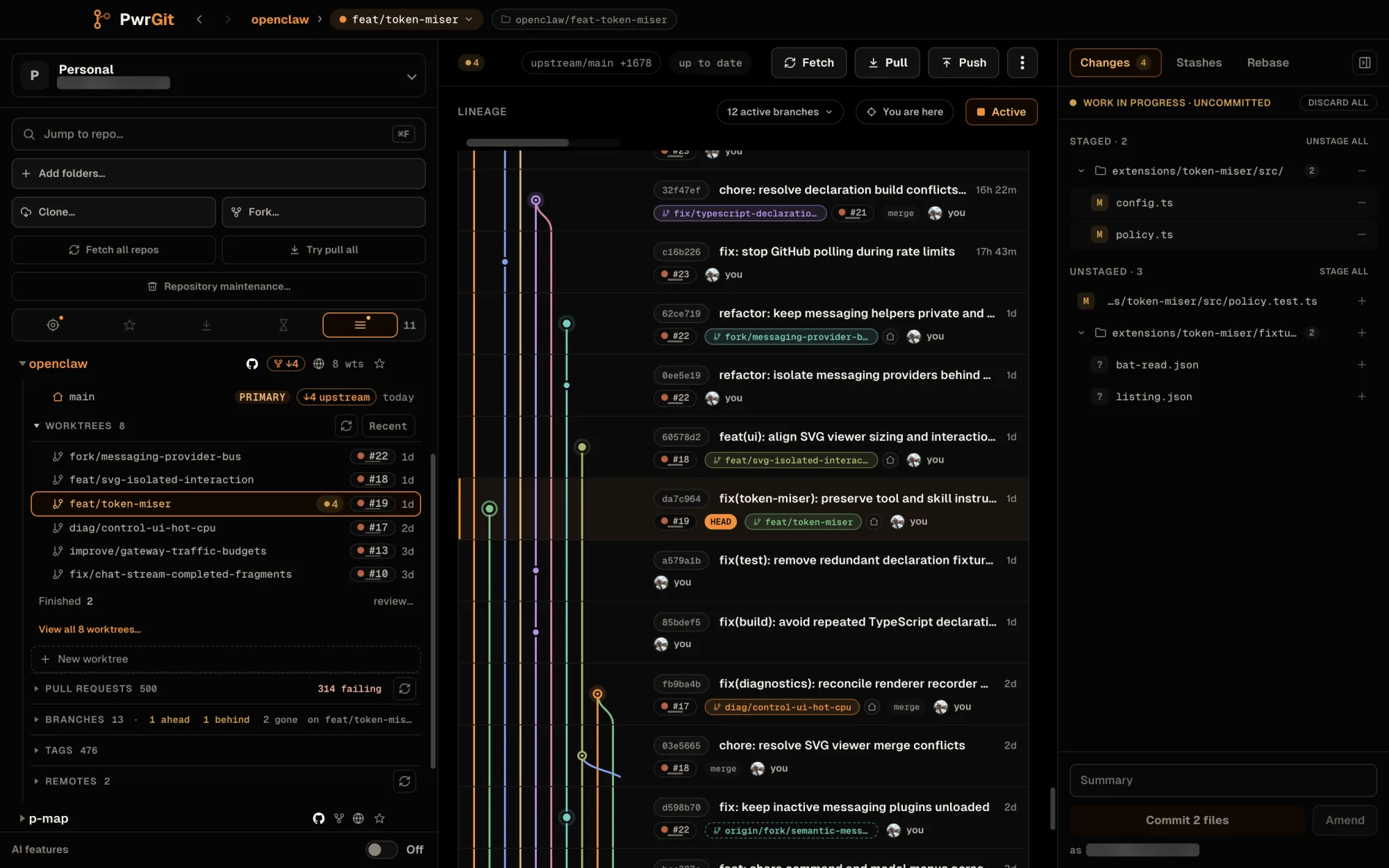
Untracked files are grouped by folder, and a folder holding more than ten new files starts collapsed — an untracked build directory would otherwise bury everything else in the list. You can stage, discard, or ignore a whole folder from its row.
Files with image content show a preview. The list refreshes live as files change, including when something outside PwrGit changes them.
Staging a file that still contains conflict markers asks first — Still has conflict markers — with Stage anyway.
On a very large change set the list is capped for rendering, and says so. The section counts, and actions that operate on everything — discard all, in particular — still use the real total rather than what fitted on screen.
Hunks and lines
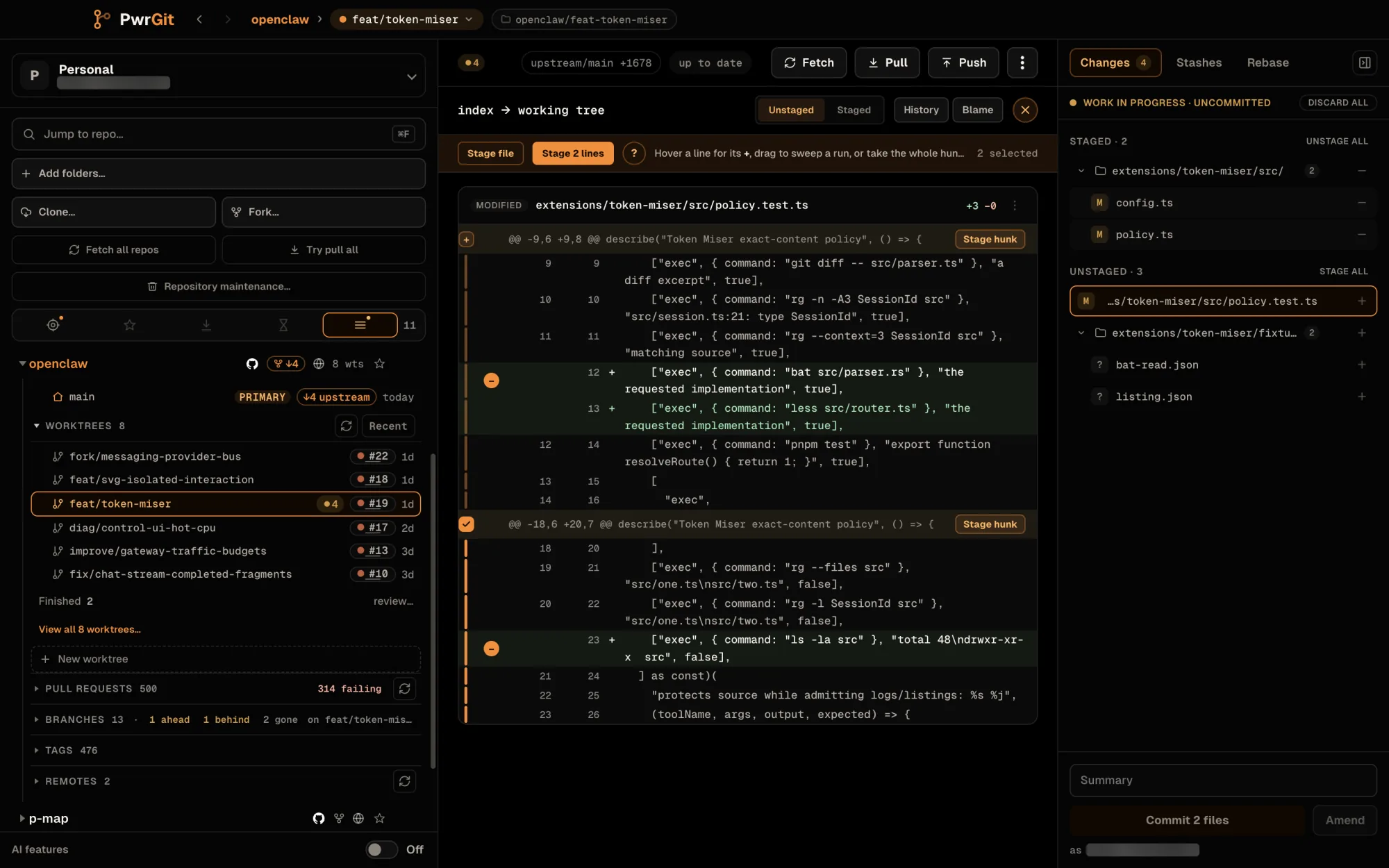
For a working-tree file, the diff pane stages part of a file. Choose Unstaged or Staged at the top to pick the side, then:
- Take a whole hunk — the chip at the top of the hunk.
- Take one line — hover it for its +.
- Sweep a run of lines — drag down the rows.
- Extend — Shift-click to extend from the last line taken.
A rail beside each hunk shows how much of it is taken. The bar at the top of the pane then offers Stage n lines (or Unstage n lines on the staged side), and Stage file for the lot. From the keyboard, J and K move between hunks and Enter stages or unstages the focused one. The ? button lists the gestures.
Some files can only move as a whole, and the bar says Whole file only. with the reason:
- a conflicted file — resolve it first;
- a renamed file — to keep the rename;
- a new, deleted, binary, or submodule file;
- a file that is not UTF-8 text, or whose only change is its mode.
A file with no trailing newline stages its last hunk as one unit. If the file changes while you are selecting, the ticked lines are cleared rather than applied to content they no longer describe.
Commit — and which identity signs it
Type a Summary and press Commit n files, or Command+Enter (Ctrl+Enter on Windows and Linux). The button stays disabled until there is both a message and at least one staged file.
Below the button, the rail reads as email. That is the active profile’s commit email, and it is the address this commit will be authored with.
PwrGit applies that identity per commit. It does not write
user.email into the repository, so nothing on disk changes when
you switch profiles, and a repository you commit to from two
profiles gets the right address each time. See
Profiles.
With AI features on for the profile, a Draft link under the message box asks your agent for a message from the staged changes. A draft never overwrites what you typed. See AI → Commit message drafts.
When a hook refuses the commit
If a pre-commit or commit-msg hook fails, the rail says which —
hook refused the commit, with its exit code — and that
nothing was committed. Your message and staged files are kept.
- Retry commit — after you fix what the hook complained about.
- Full output — the hook’s complete output.
- Commit without hooks… — asks Skip hooks for this one
commit? and then runs
git commit --no-verifyonce. That skipspre-commitandcommit-msg;post-commitstill runs, and your team’s CI may run the same checks again. The next commit runs hooks as usual.
After a commit that ran hooks, each hook is listed with how long it took; hover one for its path and exit code.
Amend
Amend rewrites the previous commit with the message in the box and whatever is currently staged, rather than adding a new one. It needs a message, not staged files, so it also rewords.
Amending changes the commit’s SHA. If the original was already pushed, the branch will read as diverged from its upstream afterwards — see When the branch has diverged.
Discard, and ignore files
Right-clicking a file offers Stage / Unstage, Ignore… (untracked files and folders), File history, Blame, Copy path, and Discard changes…. File history and Blame open File details.
Discard all is available for the whole worktree. It confirms first, names how many files it will affect, and says plainly that it cannot be undone. Discarded changes do not go to a trash; they are gone.
Ignore rules
Ignore… opens a dialog with two choices and a preview:
- Pattern — the file, its folder, or every file with its extension.
- Write it to —
.gitignore(committed · team: everyone who clones gets it, and it becomes a change to commit),.git/info/exclude(this clone: never committed, shared by every worktree of the clone), or your global ignore file (every repository on this computer, in PwrGit and your terminal). PwrGit marks the one it suggests.
Add ignore rule writes it. If an existing rule already covers the path, PwrGit says so instead of adding a redundant line. Ignoring only hides untracked files; files already committed are never affected.
When untracked files are hidden by your personal rules — the clone’s exclude file or your global ignore — the bottom of the list counts them, and Why? shows which rule hid each one.
Stashes
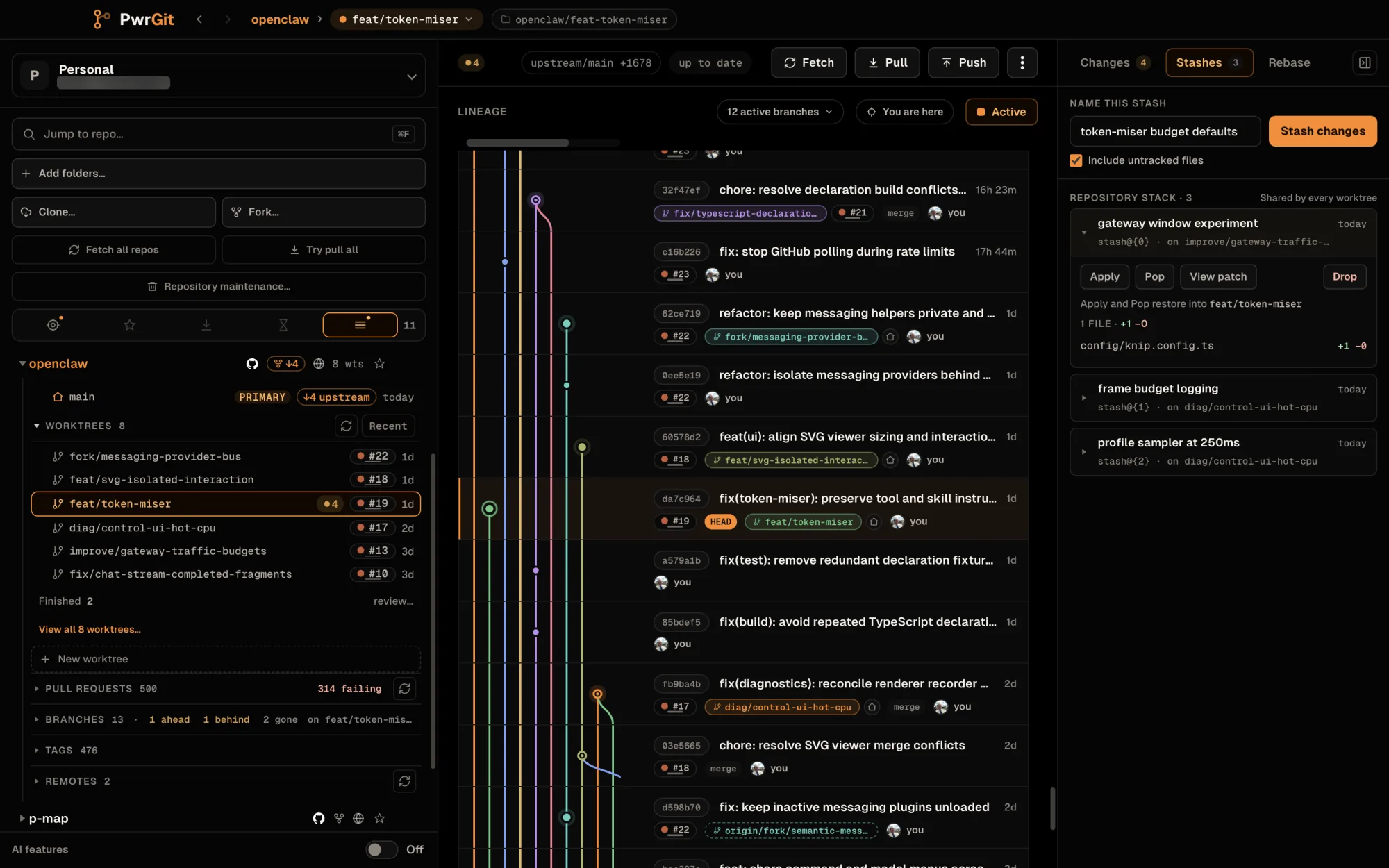
The Stashes tab saves the selected worktree’s changes and lists the repository’s stash stack.
- Name this stash (optional), Include untracked files (on by default), and Stash changes.
- Repository stack · n — Shared by every worktree. Git keeps one stash stack per repository, so a stash made in one worktree is visible, and can be applied, in all of them.
- Each entry has Apply, Pop, View patch, and Drop. Apply and Pop restore into the selected worktree. If a pop stops on a conflict, the stash is kept.
- Drop asks first: the entry is shared, and may be impossible to recover.
- Stashes PwrGit made to protect your work during an interrupted pull carry a Pull recovery chip.
Merges, rebases and conflicts
When a Merge, Rebase, Cherry-pick, Revert or Apply patches is in progress in the worktree — started by PwrGit or from a terminal — a banner at the top of the rail names it, its step (step 2 of 5), and how many files are still conflicted.
- While anything is conflicted, the banner says to resolve the files in your editor and stage each one from the Changes tab. Continue stays unavailable until everything is staged.
- Continue operation… runs
git <operation> --continue. Git hooks may run, and Git may stop again on the next conflict. - Abort operation… runs
git <operation> --abort, which restores the state from before the operation, or refuses if it cannot do so safely.
If the index has unmerged entries with no operation in progress — after a conflicted stash apply, say — the banner reads Unmerged index and says to resolve and stage each path.
Squash and reorder commits
Select commits in the graph with the checkbox beside each row and a selection bar appears with Squash, Reorder, and — with AI features on — Tidy…. Each opens the Rebase tool in the rail.
The selection must be the most recent commits on the branch, in one unbroken run, at least two of them, and the worktree must be clean — commit or stash first.
- Squash produces one commit. Its message starts as the selected subjects joined (Joined from n subjects); edit it before checking.
- Reorder reverses the selected commits.
- Tidy… asks your agent to propose which commits fold into which, with new messages. See AI → Tidy history plans. Squash and Reorder need no agent.
Then every plan takes the same path:
- Plan. The exact step list, in the order it will execute.
- Check in isolated copy. The plan is replayed in a scratch copy of the repository, never your worktree, and fills a proof ledger: n commits, each used once; Code unchanged at the tip — the final file tree is identical to the one you started from; and Replays cleanly. A plan that would change the code is Blocked; a conflict reports a Snag naming the step and files.
- Apply rebase. Enabled only after a clean check.
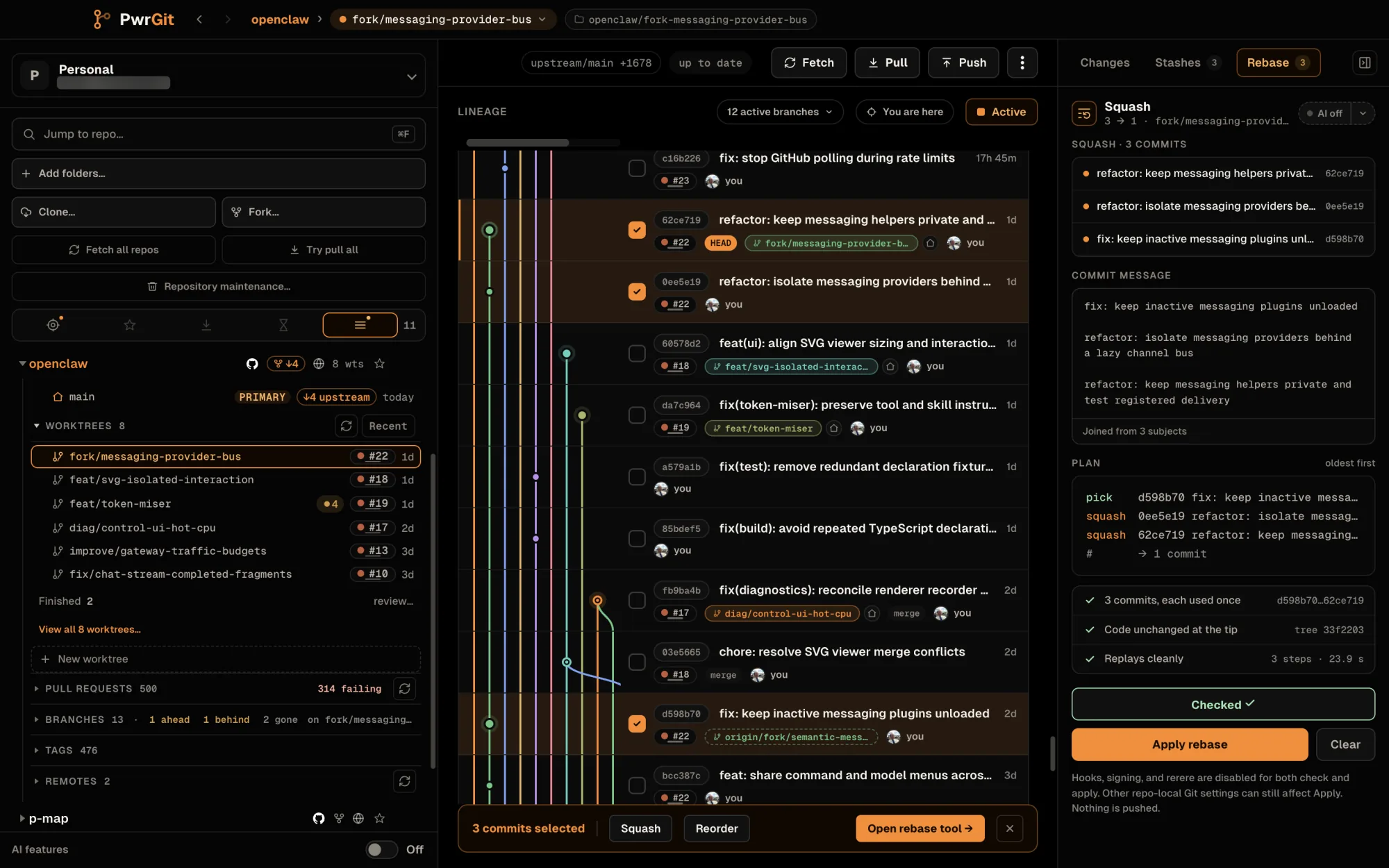
Hooks, signing, and rerere are disabled for both the check and the apply, so a commit hook cannot fire twice or block the dry run. Other repo-local git settings can still affect the apply.
Nothing is pushed. A rebase rewrites local history; sending it anywhere is a separate, explicit push.
Not yet
- No conflict resolution UI. Conflicts are shown, counted, and can be continued or aborted from the banner; resolving the files is a job for your editor.
- Squash, reorder and Tidy only. The rebase tool does not offer reword, drop, edit, or an arbitrary interactive rebase, and Reorder only reverses.