
Install
PwrGit ships as a signed macOS app, a signed Windows installer, and native Linux packages. It carries its own Git and Git LFS, so nothing else has to be installed first. Pick your platform, then read First launch — PwrGit does nothing useful until it knows which folders your repositories live in.
Pick your platform
Every release is published to GitHub Releases on pwrdrvr/PwrGit. Each one carries a version-stamped file and a stable-name copy of the same bytes, so the links below always fetch the current stable build.
| Platform | Download | Notes |
|---|---|---|
| macOS 13+, Apple silicon | PwrGit-arm64.dmg |
Native build, the smaller download |
| macOS 13+, Intel or not sure | PwrGit.dmg |
Universal — runs natively on both |
| macOS, Homebrew | brew install --cask pwrdrvr/tap/pwrgit |
Same signed app, Apple silicon or universal |
| Windows 10/11, x64 | PwrGit.Setup.exe |
Per-user install, no administrator rights |
| Linux, x64 or arm64 | DEB, RPM, pacman, or .tar.gz |
See Linux |
macOS
- Download the DMG for your Mac:
PwrGit-arm64.dmgon Apple silicon (M1 and later),PwrGit.dmgotherwise. - Open it and drag PwrGit onto Applications.
- Launch it from Applications.
Both builds are signed with a Developer ID and notarized by Apple, so first launch is a single Gatekeeper confirmation — no right-click-Open, no trip to System Settings.
macOS 13 (Ventura) is the floor. If you installed the universal build on an Apple silicon Mac, the next update moves it to the Apple silicon build on its own; there is nothing to reinstall.
Homebrew. The cask lives in the PwrDrvr tap:
brew install --cask pwrdrvr/tap/pwrgit
It installs the same signed app as the DMG, and is published when
a release is promoted to Stable. PwrGit still updates itself from
inside the app; brew upgrade --cask --greedy pwrdrvr/tap/pwrgit
also works if you would rather Homebrew did it.
PwrGit asks for no system permissions on macOS. It reads and writes the folders you point it at and nothing else.
Windows
- Download
PwrGit.Setup.exe. - Run it. It installs per user, so it does not prompt for administrator rights, and it lets you change the install directory.
- Launch PwrGit from the Start menu.
The installer and the app are code-signed, and the publisher name is checked on the signed binary before a release ships, so SmartScreen should not interrupt you.
Each release also carries a PwrGit-windows-SHA256SUMS file. It
lists the version-stamped installer,
PwrGit-<version>-windows-x64-setup.exe — PwrGit.Setup.exe is
the same bytes under a stable name, but only the versioned name
appears in the checksum file.
Windows builds are x64 only. There is no native Arm64 build, so Arm devices run the x64 build under emulation.
Linux
Four formats, each for x64 and arm64:
| Format | For | Stable-name download (x64) |
|---|---|---|
| DEB | Debian, Ubuntu and derivatives | PwrGit-linux-x64.deb |
| RPM | Fedora, RHEL, openSUSE | PwrGit-linux-x64.rpm |
| pacman | Arch and derivatives | PwrGit-linux-x64.pacman |
| tar.gz | Anywhere; no package manager | PwrGit-linux-x64.tar.gz |
For arm64, replace -linux-x64. with -linux-arm64. in every
name and command on this page.
Debian / Ubuntu
base=https://github.com/pwrdrvr/PwrGit/releases/latest/download
curl -fLO $base/PwrGit-linux-x64.deb
sudo apt install ./PwrGit-linux-x64.deb
Fedora / RHEL (zypper install takes the same URL on openSUSE)
base=https://github.com/pwrdrvr/PwrGit/releases/latest/download
sudo dnf install $base/PwrGit-linux-x64.rpm
Arch
base=https://github.com/pwrdrvr/PwrGit/releases/latest/download
sudo pacman -U $base/PwrGit-linux-x64.pacman
The packages are named pwrgit, install the app under
/opt/PwrGit, and add PwrGit to your desktop’s application
menu with its icon at the standard desktop-theme sizes (from
0.32.0; earlier packages could show a blank launcher icon). They
depend on nothing outside the package for Git: the bundled Git and
Git LFS come with it.
Portable archive. Download PwrGit-linux-x64.tar.gz, extract
it wherever you keep applications, and run pwrgit from the
extracted directory. An archive cannot update itself — see
Updates on Linux.
Checksums. Each architecture has its own
PwrGit-linux-<arch>-SHA256SUMS, listing both the versioned and
the stable-name files:
base=https://github.com/pwrdrvr/PwrGit/releases/latest/download
curl -fLO $base/PwrGit-linux-x64-SHA256SUMS
sha256sum --check --ignore-missing PwrGit-linux-x64-SHA256SUMS
Release CI installs, launches and removes the DEB on Ubuntu, x64 and arm64, with Electron’s sandbox left on. The RPM and pacman payloads are validated on Ubuntu too; installing them on Fedora or Arch is checked by hand rather than in CI.
Package filenames on the release page are versioned per format —
amd64 / arm64 for DEB, x86_64 / aarch64 for RPM, x64 /
aarch64 for pacman. The stable names above are always x64 /
arm64.
First launch
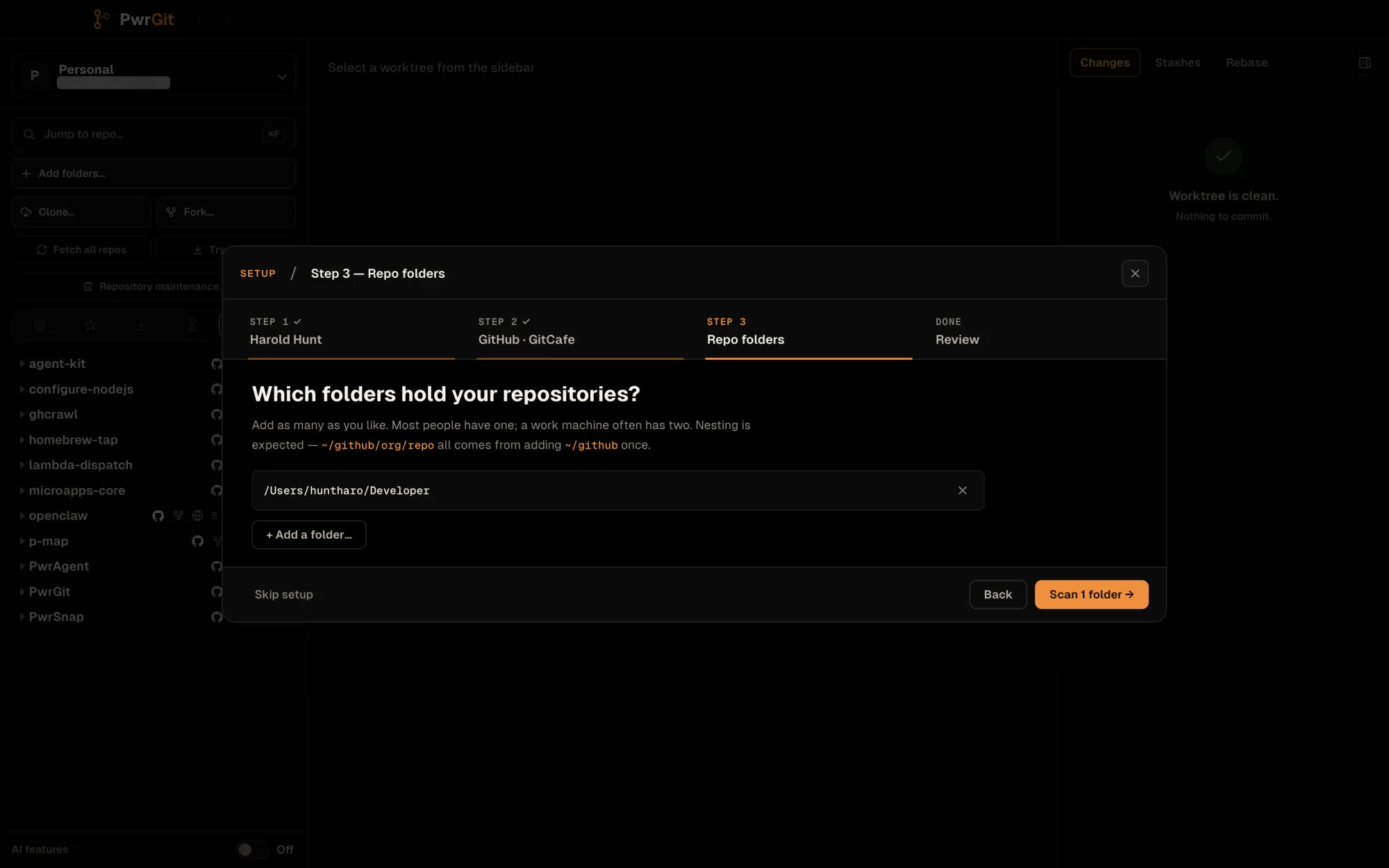
A new profile opens on a short setup wizard. It does not scan your disk uninvited — the third step is where you tell it where to look. Skip setup (or Escape) closes it at any step, and Help → Replay First-Run Setup… brings it back later.
- Identity. The author name and e-mail your commits from this
profile carry. Both are prefilled from
git config --get user.name/user.email. Saving writes them to the PwrGit profile only;~/.gitconfigis not edited. If your global config sets a different identity for some folders withincludeIf, the wizard says so, and commits there keep that identity. - Forges. GitHub, GitLab and GitCafe, each with its live
state. A signed-out forge shows the exact command to run in a
terminal (
gh auth login,glab auth login), and the row updates itself once you have. This step is optional — without a forge, PwrGit still finds, branches, commits and pushes. See Forges. - Repo folders. Add the folders your code lives in. Adding
~/githubonce covers~/github/org/repo. The scan looks five levels down for a.gitentry and stops at each repository it finds; it never opens folders whose names start with a dot (.ssh,.aws,.gnupg), and skipsnode_modules,dist,out,build,target,vendor,.cacheand macOSLibrary. It reads directory names, not file contents. Adding your home folder works, but the wizard advises against it: the walk passes thousands of directories that are not code on every rescan. - Review. What was found — repositories, worktrees, folders — and what each sidebar lens will show once you start working. Start working closes the wizard.
Per-repository state — ahead, behind, uncommitted — is read when you first open or fetch a repository, not during the scan, which is why the Focused, Behind and Stale lenses start empty. The sidebar rescans on its own once a day.
If you work under more than one identity — a company address and
a personal one — make a profile for each rather than switching
git config by hand. Each profile gets its own window, and
Command+1 through Command+9
(Ctrl+1–Ctrl+9) switch between the first
nine. See Profiles.
New worktrees are created under ~/wt/<repo>/<branch>. Worktrees
you created yourself elsewhere are found and listed wherever they
are — see Worktrees.
Updates
PwrGit checks for updates on its own — about ten minutes after a first launch, then hourly — and downloads them in the background. Help → Check for Updates asks now: it opens a card with the download’s progress and size and a Cancel button, then offers Restart when the build is ready. Check for Update in Settings → Updates does the same and answers inline.
On macOS and Windows a downloaded update installs when you press
Restart to Update (<version>), or the next time you quit
normally. Until then nothing is replaced.
Two independent choices decide which builds reach you:
| Choice | Options | What it means |
|---|---|---|
| Release train | Stable, Beta | Stable is the smoke-checked train. Beta builds come off main. |
| Update track | Latest, Prerelease | Latest is smoke-checked within its train. Prerelease is newer and may not install. Beta · Prerelease also picks up Stable candidates that are ahead of Stable · Latest, so it never trails the Stable line. |
That is four slots, and Settings → Updates shows the version currently published in each one, with a link to its release notes, so you can see what a switch would move you to. A slot reading Unavailable has nothing published yet; Beta stays selectable regardless. Until you pick a slot, PwrGit follows the build you installed — a stable version follows Stable · Latest. Picking a slot, or a newer release turning up in it, starts the download right away.
Stable · Latest is the right answer unless you have a reason to want otherwise.
The request budget. Release checks read GitHub’s public API, which allows 60 anonymous requests an hour per IP address — shared by every machine behind that address. PwrGit keeps a persistent budget in its data folder: at most one automatic release check an hour, held across restarts and channel changes, backing off after failures and honoring GitHub’s rate-limit reset. A manual check skips the hourly cadence but still waits out a known rate-limit reset.
Updates on Linux
DEB, RPM and pacman installs check for and download updates in-app, like the other platforms. Installing is different: a Linux update only installs when you press Restart, which asks for administrator authorization to install the package. An ordinary quit never installs anything. If authorization is canceled or the install fails, the downloaded update stays offered and Restart can be tried again.
When an update cannot install, Settings → Updates and the
Check for Updates card show a terminal command to do it by hand,
with Copy update command. It downloads the matching package and
runs sudo apt install, sudo rpm -Uvh --oldpackage or
sudo pacman -U on it — close PwrGit first.
The .tar.gz archive cannot update itself. PwrGit says so in
the same places. To update, download the new archive for your
architecture, close PwrGit, and replace the extracted directory.
If you want in-app updates, install a native package instead.
Uninstall
macOS — quit PwrGit and drag it from Applications to the
Trash. Homebrew installs: brew uninstall --cask pwrgit.
Windows — uninstall PwrGit from Settings → Apps → Installed apps, or from Add or Remove Programs.
Linux — remove the package with the same tool that installed it:
sudo apt remove pwrgit       # Debian / Ubuntu
sudo dnf remove pwrgit       # Fedora / RHEL
sudo zypper remove pwrgit    # openSUSE
sudo pacman -R pwrgit        # Arch
For the archive, delete the extracted directory.
None of these removes your data. PwrGit keeps its index, settings and logs in its own application-data folder:
| Platform | Data | Log |
|---|---|---|
| macOS | ~/Library/Application Support/PwrGit/ |
~/Library/Logs/PwrGit/main.log |
| Windows | %APPDATA%\PwrGit\ |
%APPDATA%\PwrGit\logs\main.log |
| Linux | ~/.config/PwrGit/ |
~/.config/PwrGit/logs/main.log |
The data folder holds pwrgit.db (the repository and worktree
index), settings.json, the update-check budget, the generated
config for the bundled Git, local agent authorizations, and caches
such as commit author avatars. Delete it to remove every trace;
keep it to preserve your profiles and pins across a reinstall.
Your repositories and worktrees are untouched by any of this.
They are ordinary directories that PwrGit indexed — removing the
app removes the index, not the checkouts. If you want the
worktrees gone too, remove them from inside PwrGit first (see
Remove a worktree), because deleting the
directories by hand leaves stale administrative entries in each
repository’s .git.
Not yet
- No native Windows Arm64 build. x64 only, under emulation on Arm.
- No Winget package. Windows installs are the installer.
- No AppImage, and no apt / dnf repository. Linux packages install from the release URL; updates come through the app, not your package manager.
- The worktree root is not editable in Settings. It defaults
to
~/wtand there is no UI to point it elsewhere.