
History
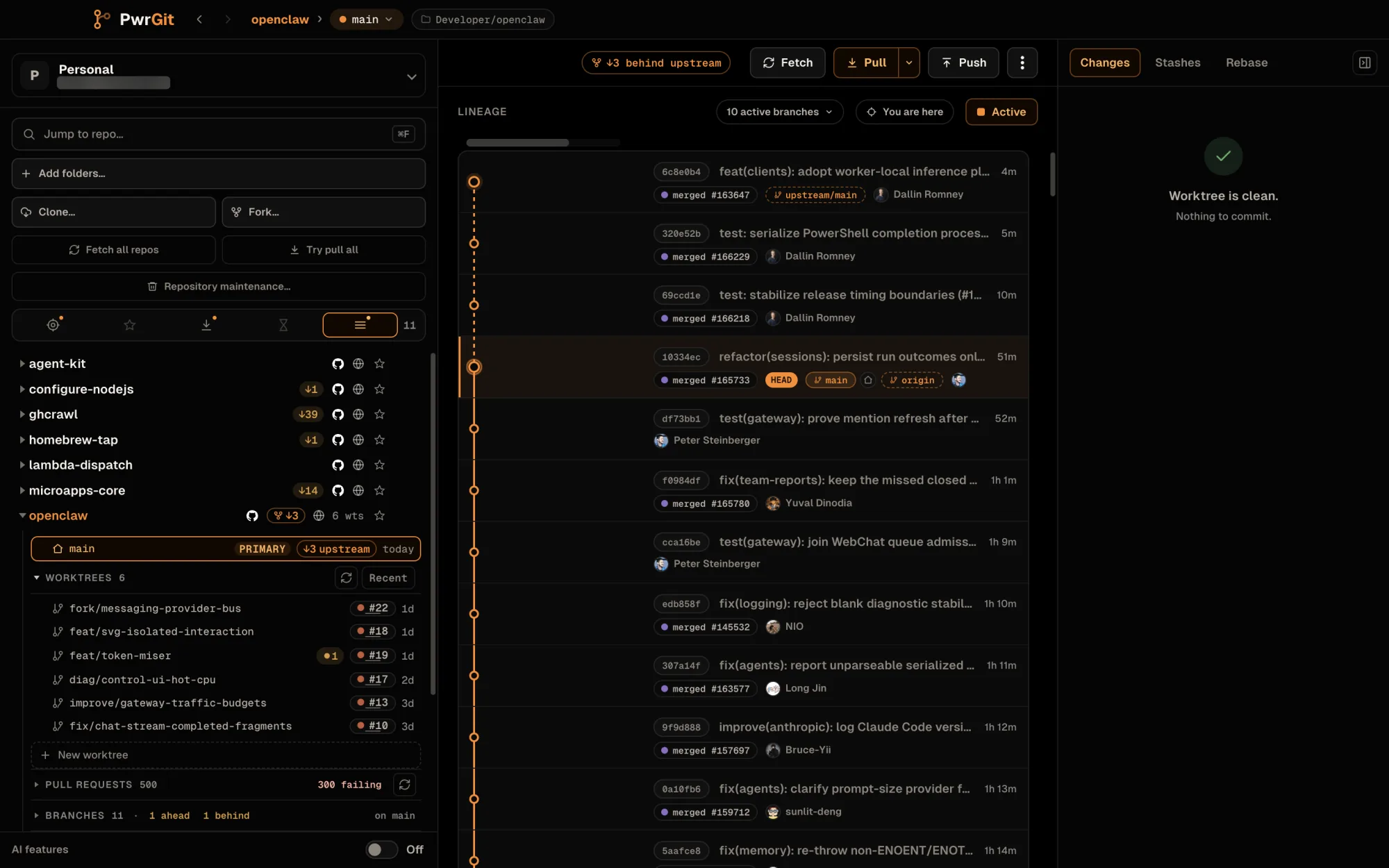
Selecting a worktree draws its lineage graph — the commit history, as lanes, with branch chips on the tips and pull or merge request status where there is any.
The lineage graph
Each row is a commit: its lane marker, the subject, the author, and how long ago it landed. Clicking a commit loads its files into the rail on the right, whose first tab becomes Commit; clicking a file there opens that file’s diff for that commit. The whole commit as a single patch is one click further away, under Full diff.
The toolbar above the graph, labelled Lineage, holds:
- The branch count — n active branches. It opens a list of every branch drawn; pick one to jump to its tip.
- You are here — scrolls to this worktree’s
HEADcommit, and reveals the worktree’s row in the sidebar. - The scope toggle — Active or All branches. See Scope.
The lane gutter draws at most ten lanes at once. Wider histories scroll the gutter sideways while the commit rows stay put.
It draws fetched work, not just local work
A branch that is behind its upstream has commits sitting in
the object store that no local ref points at. Walking only local
tips would silently omit them — the lane would look current while
the sidebar said ↓2, with the rows you were looking for simply
absent.
PwrGit walks those upstream commits too, and draws them dashed
as fetched-but-not-applied. Each remote gets its own dash pattern
— the closest remote one, the next remote out another — so on a
fork, work on upstream reads differently from work on origin.
A branch that has diverged forks at the merge base, so its
dashed leg runs past your own rows and bends back into your lane
there.
That is the practical value: after a fetch, you can see what a pull would bring in before you run it.
Where squash and rebase merges landed
A squash or rebase merge leaves no git edge between a branch and the commit that landed it. Where a merged pull request connects the two, PwrGit draws a dotted purple landing lane from the branch’s tip to the commit on the default branch that carries its work, so the branch does not look abandoned.
Scope — Active or All branches
The scope toggle in the toolbar:
- Active — local branches with work not yet in the default branch, that are yours (you authored or co-authored a commit, or the branch is checked out in a worktree), and whose pull request has not merged. At most 30 are drawn, most recently committed first. A note under the graph says how many more are hidden (merged or inactive), with Show all branches.
- All branches — everything still in flight: local and remote-tracking branches not merged into the default branch, capped at the 40 most recent. A remote branch shadowed by a local one of the same name is drawn once.
The branch of the worktree you are looking at is never dropped by either cap.
Active is the default. Settings → Experimental → Lineage Graph Scope → Default to all branches opens new graphs on All branches instead; the toggle still overrides it per view. See Settings.
Branch chips and their menu
Branch tips carry a chip with the branch name; remote branches carry the remote’s name too. A branch checked out in a worktree is marked, and clicking that mark opens the worktree. The chip’s menu offers:
- Open its worktree when the branch is checked out somewhere, otherwise Switch to branch (or Switch to branch from remote/branch for a remote branch). Switching with uncommitted changes asks first — see Switch a worktree.
- Reset current to remote/branch…, on a remote chip. See Reset to remote.
- Copy branch name, Copy worktree path.
- Open PR #n and Copy PR #n link, when the branch has a request.
Pull and merge request chips
A request shows as #n (GitHub) or !n (GitLab) beside its branch — merged #n or closed #n once it is settled. Hovering it opens a status card: the title, source and target branches, the state, the size of the change (files, additions, deletions), and a timeline — opened, merged or closed. The card is drawn from data PwrGit already has and issues no request of its own, so hovering around the graph does not generate forge traffic. Anything it does not know is left out, never shown as zero.
Clicking the chip opens the request on the forge in your browser. Option-click (Alt-click on Windows and Linux) copies its URL instead. To read a request inside PwrGit, see Pull requests.
Commit details and author identity
Right-clicking a commit gives you:
- View changes — load its files into the rail.
- Switch to branch, or Open the branch worktree, for each branch at that commit.
- Branch from this commit… — with a choice of not checking it out, a new worktree, or this worktree. See Create a worktree.
- Tag this commit… — see Tags.
- Copy short SHA, Copy full SHA, Copy commit message, Copy author email, Copy branch name, Copy viewing branch, Copy base branch.
- Open PR #n, Copy PR #n link and Copy commit link, for each request that contains the commit.
Hovering the short SHA opens the commit context card: when it was committed, its age, its change size, the branch you are viewing it from and the base branch, with copy buttons for the short and full hash.
Author avatars are proven, not guessed
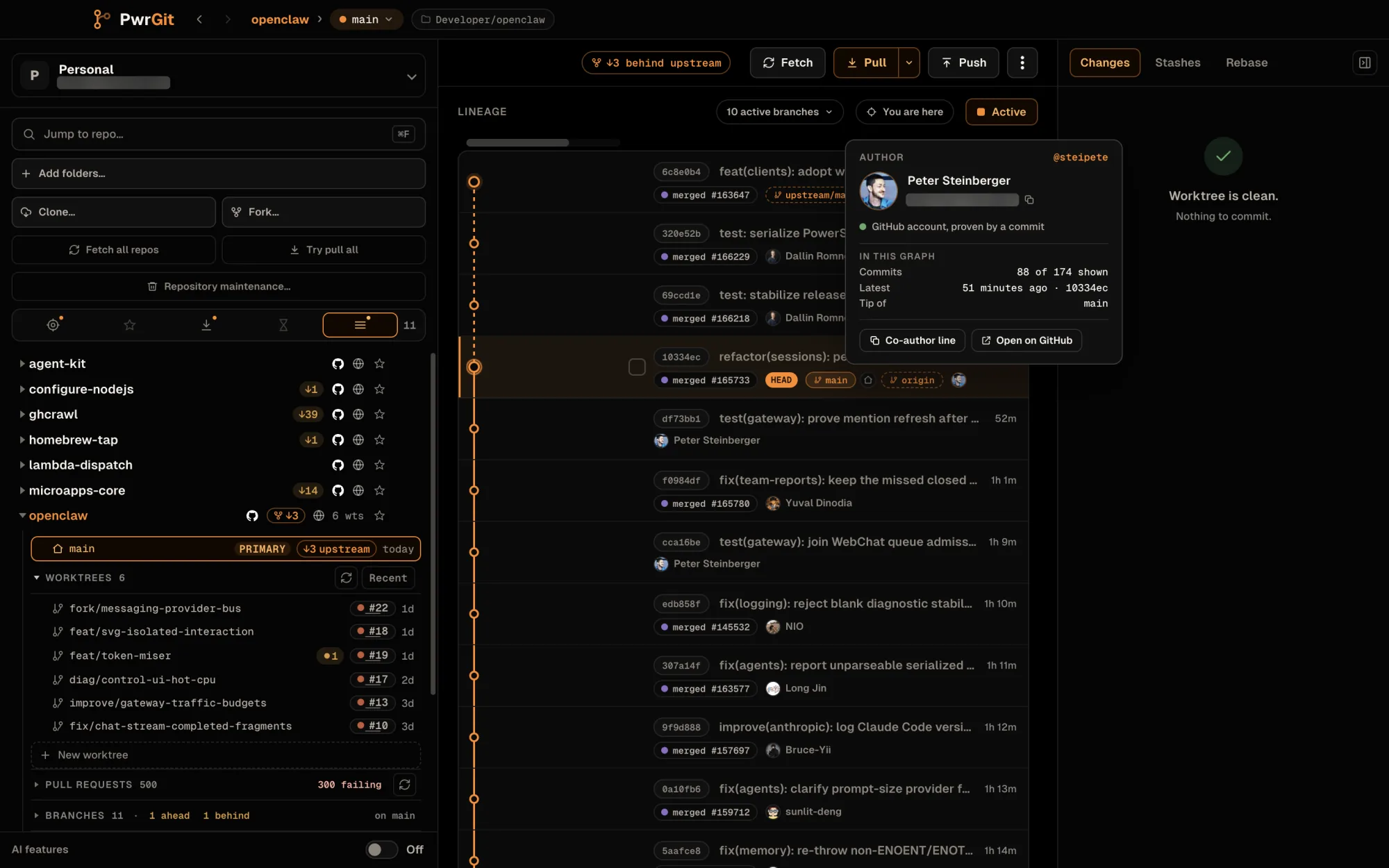
Where a commit’s author has been matched to a forge account, PwrGit shows that account’s avatar. The match is deliberately conservative: it requires the exact commit SHA and the forge’s own record of the author. Where the forge has no linked account, a uniquely associated pull request can supply one — but only if its login matches the git author name or the local part of the email.
If none of that holds, you get initials and the local git authorship. PwrGit would rather show nothing than attach the wrong person’s face to a commit.
Hovering or clicking an author opens their person card:
- Author, or Author · you when the email is one of yours.
- The forge account, marked proven by a commit when it was matched as above. Open on forge appears only then.
- In this graph — how many of the drawn commits are theirs, which branch tips they own, and their latest commit.
- Copy email address, and a Co-author line button that
copies
Co-authored-by: Name <email>for a commit message.
Avatars are cached on disk and served to the UI through a local URL, so the source URL never reaches the page and the image is not re-fetched on every hover. See Forges → Commit author avatars.
The diff pane
The diff pane opens over the graph, from a changed file in the rail or from a commit. Its header has a close (✕) control, and Escape closes it too.
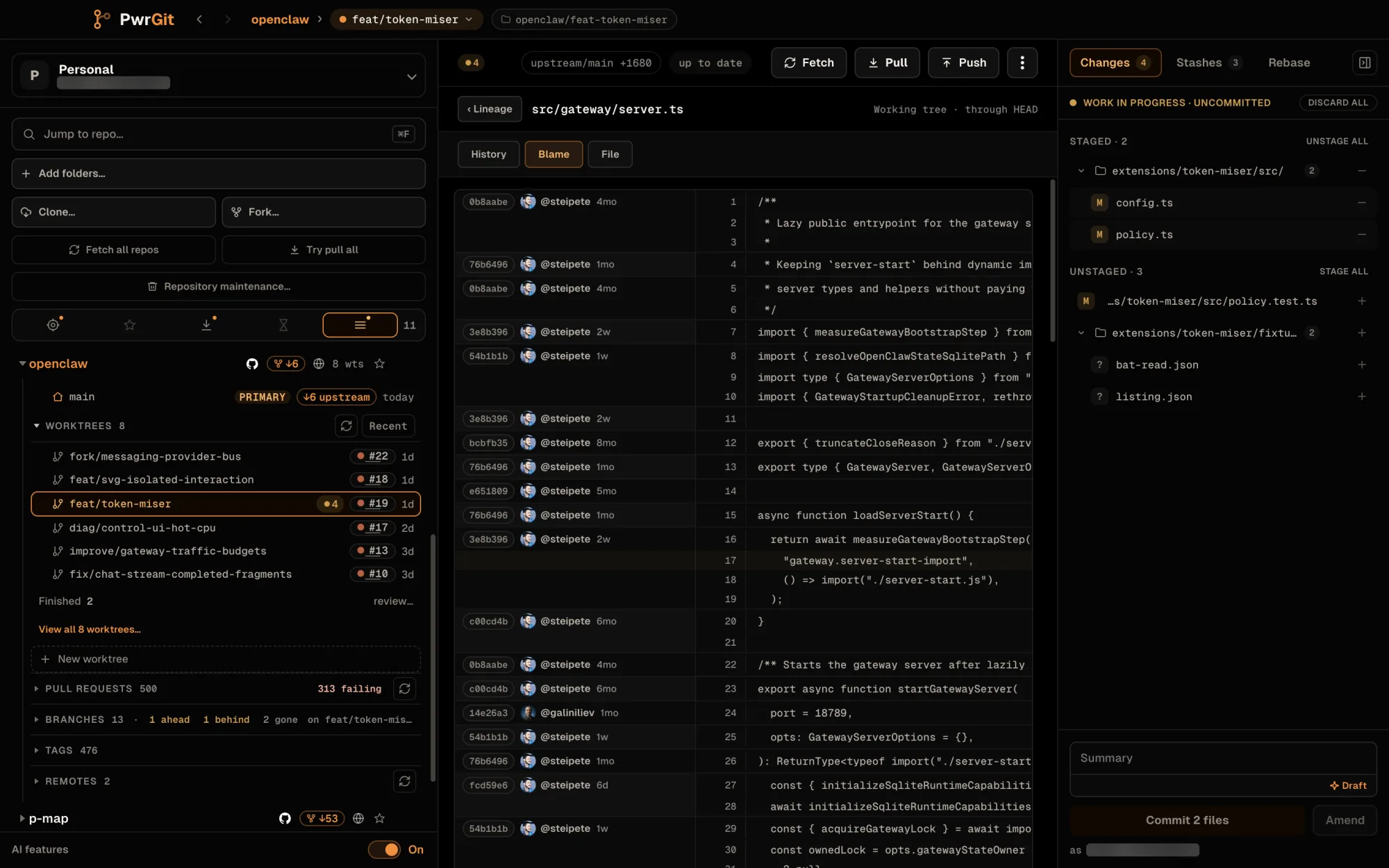
It renders a working-tree file’s diff, one file’s diff within a commit or a stash, and a whole commit as a single patch. For a working-tree file, Unstaged and Staged switch between the two sides of the index, and the pane is where hunk and line staging happens — see Changes → Staging.
From the header you can also open the file at that revision (View file), its File history, or its Blame — see File history and blame.
Images
Images are diffed as images rather than as binary hunks. Clicking one opens a full-window viewer with Before, After and Diff views — the diff highlights the changed pixels — and a shared zoom and pan across all three: + and − zoom, 0 fits, 1 shows actual size. Left Arrow and Right Arrow walk every image in the diff. A copy menu puts before, after, the diff, or the images side by side on the clipboard.
A Git LFS pointer, an image too large to preview, or one that does not exist on one side says so instead of drawing a blank.
When a pane fails
If the diff or file details pane hits an error, it stops drawing and says so — This pane hit an error and stopped drawing. — with Try again and Show logs, instead of taking the window down with it. The rest of the window keeps working.
File history and blame
File details opens beside the diff with three tabs:
- History — every commit that touched the file, following renames (Renamed from …). Each entry can show what it changed in this file, the file as of that commit, or the commit in the lineage.
- Blame — the commit behind each line, with a jump to that commit in the lineage and Blame this file just before this commit to step back past a reformat.
- File — the file’s contents at the selected revision.
Open it from:
- the diff header’s File history or Blame;
- a line number in the diff — blame from that line;
- a file’s actions menu in the diff, or its row menu in the Changes rail;
- a file picked in Command+K search.
The refs browser
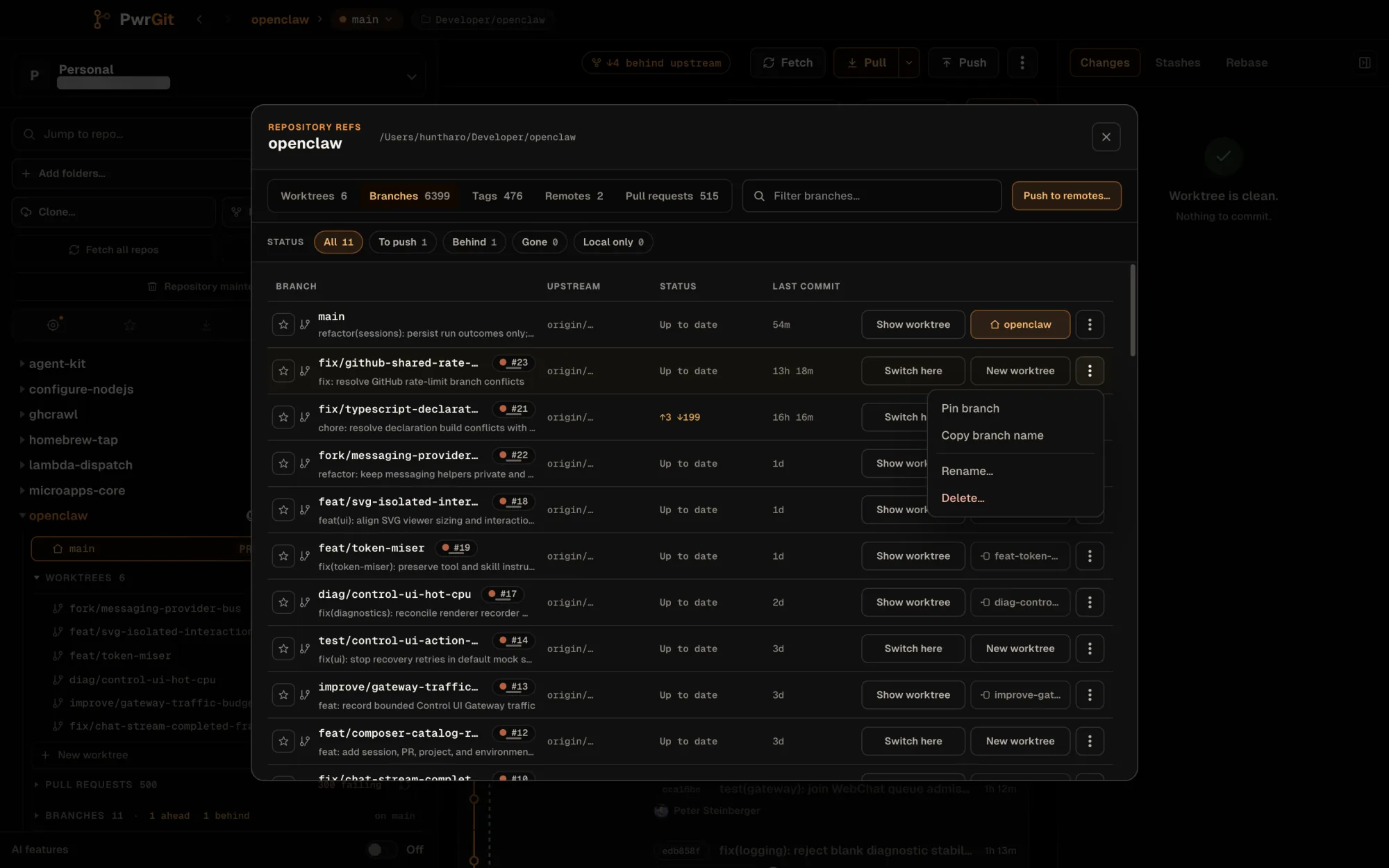
View all n branches… (or tags, or worktrees) in the sidebar opens the repository’s Repository refs window. Its tabs are Worktrees, Branches, Tags, Remotes and Pull requests, each with a filter box.
- Worktrees — see The Worktrees tab.
- Branches — filters All, To push, Behind, Gone and Local only. Each row has Switch here and New worktree, a pin, and a menu with Copy branch name, Rename… and Delete…. Delete removes only the local branch, and git refuses it if the commits are not merged into the upstream. The Gone filter offers Clean up finished branches… — see Maintenance.
- Tags — see below.
- Remotes — each remote and its branches. See Repositories.
- Pull requests — see Pull requests.
The rows are keyboard-driven: Down Arrow from the filter enters the list, Up Arrow / Down Arrow walk it, Home and End jump, Space pins, and Enter — or a double-click — runs the row’s primary action.
Tags
Tag this commit… in the graph, or the Tags tab, opens Create
tag in repo: a Tag name, a Target (HEAD, a branch, a
tag or a commit ID, resolved to a commit before you confirm), and
a Tag kind — Lightweight or Annotated with an
Annotation.
The Tags tab lists every tag. Locate jumps to the tagged commit in the lineage; the menu has Copy tag name and Delete local tag…, which leaves tags on remotes alone. To send a tag to a remote, see Push to other remotes.
Not yet
- No text search inside a diff. Command+F opens the repository search overlay from anywhere in the app, including with a diff open.
- No merge editor. A conflicted merge, rebase or cherry-pick is shown and can be continued or aborted from the rail — see Changes → Merges, rebases and conflicts — but resolving the conflicts themselves is a job for your editor.