
Search and navigation
Two things get you around PwrGit without the mouse. The Command Palette jumps to anything by name. Back and Forward retrace where you have been, the way a browser does.
The Command Palette
Command+K or Command+F (Ctrl+K / Ctrl+F on Windows and Linux) opens it from anywhere in the main window, as does Jump to repo… at the top of the sidebar. Escape closes it.
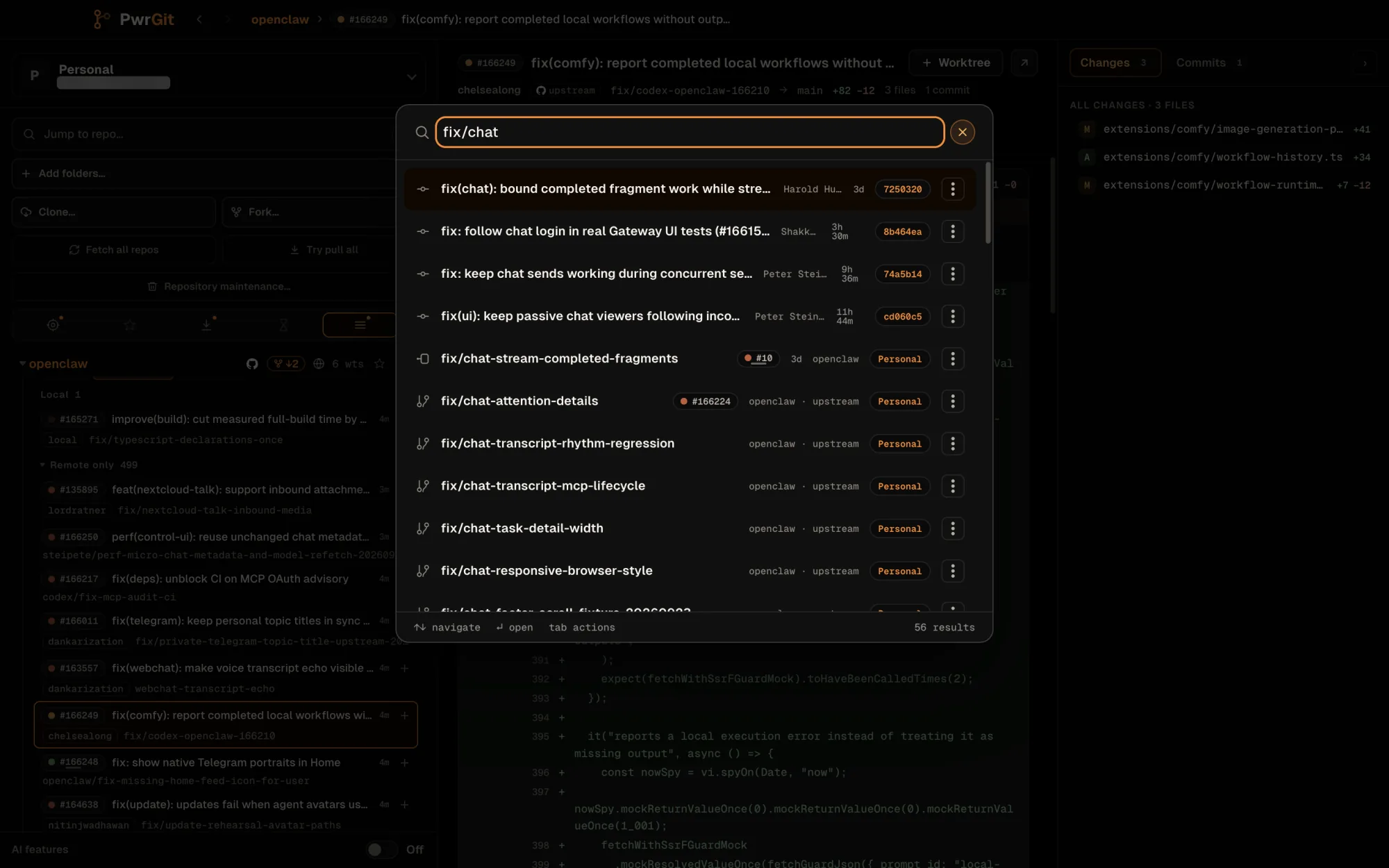
What it finds
| Kind | Matches on | Picking it |
|---|---|---|
| Repo | Name. An exact name stays above similarly named worktrees. | Selects it and reveals it in the sidebar |
| Worktree | Branch name, path, and folder name — so a path pasted from a shell finds a worktree whose branch was renamed since | Selects the worktree |
| Local branch | Branch name, for branches no worktree holds | Opens New worktree for it |
| Remote branch | Branch name | Opens New worktree from the fetched ref |
| Pull request / Merge request | Number — #106 or !106, and a bare 106 means #106, never #1060 — or title |
A request whose head a worktree or branch already holds is listed as that row, with the request’s chip. One whose head is not here yet is fetched first, then opens New worktree |
| Commit | Message, author, or hash prefix in the selected worktree’s loaded graph; a 4–64 character hex string is also looked up in the repository directly | Opens the commit in the graph |
| File | Path of a tracked file in the selected worktree | Opens its history and blame |
Tags are not searched; use the Tags section or the refs browser’s Tags tab. With the box empty, the palette lists every repository, pinned ones first.
Typing setup offers Repository setup… for the current
repository — see Repository setup.
Keys
| Key | Does |
|---|---|
| Up / Down | Move through results |
| Enter | Open the selected result |
| Tab | Move to the selected row’s ⋮ copy menu, and back to the search box |
| Command+P (Ctrl+P) | Pin or unpin the selected repository, worktree or local branch |
| Command+Shift+A (Ctrl+Shift+A) | Switch between This profile and All profiles |
| Escape | Close |
Copy from a result
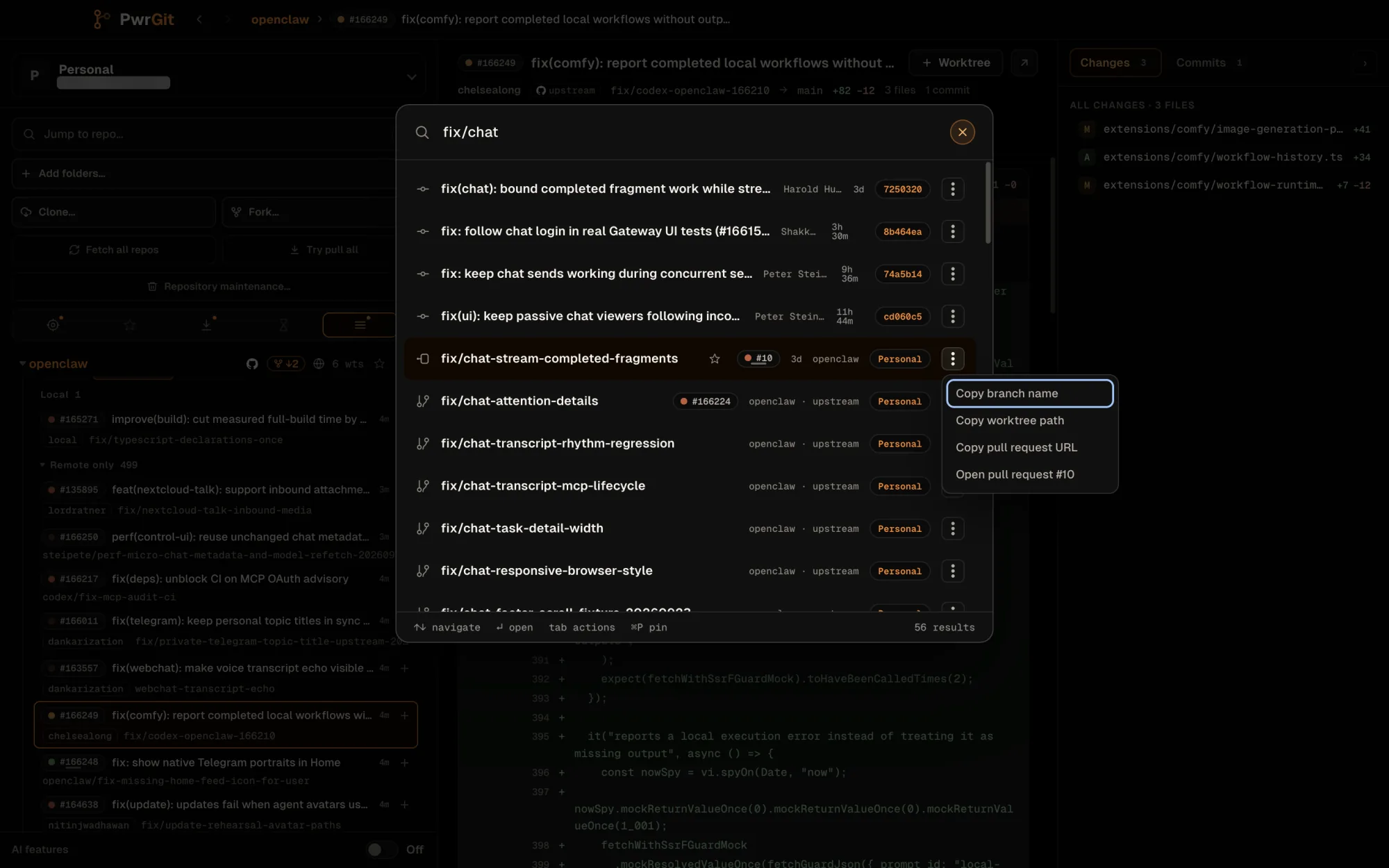
Each row’s ⋮ button (or Tab) opens what it can copy, without closing the palette:
- Copy repo name, Copy repo path
- Copy branch name, Copy worktree path
- Copy commit hash
- Copy file path
- Copy pull request URL and Open pull request #
n— in the forge’s own noun, so a GitLab row says merge request
This profile or all profiles
The palette searches the current profile. With two or more profiles, the search line carries a This profile / All profiles control. It is the same setting as Settings → General → Search all profiles (off by default) — change either and the other follows.
With all profiles on, each row names its profile, and picking a result from another profile opens that profile’s window rather than changing this one.
Back and Forward
PwrGit keeps a history of where you have been, per profile, and lets you walk it.
| Go | macOS | Windows and Linux |
|---|---|---|
| Back | Command+[ or Option+Left | Ctrl+[ or Alt+Left |
| Forward | Command+] or Option+Right | Ctrl+] or Alt+Right |
The chevrons in the title bar do the same, and so do a mouse’s back and forward thumb buttons. Option+Left and Option+Right (Alt+Left / Alt+Right) are ignored while you are typing in a text field, where they move the cursor.
- An entry is a worktree you selected, with the commit you had open in it. Going back reopens that commit.
- The first Back closes an overlay — a diff, file details, or a request view — before it leaves the worktree.
- Sidebar jumps keep your place. Returning to a worktree does not force open a collapsed worktree list; the row you came from is held where it was.
- History is saved per profile and survives a relaunch, up to 50 entries deep.
The History menu
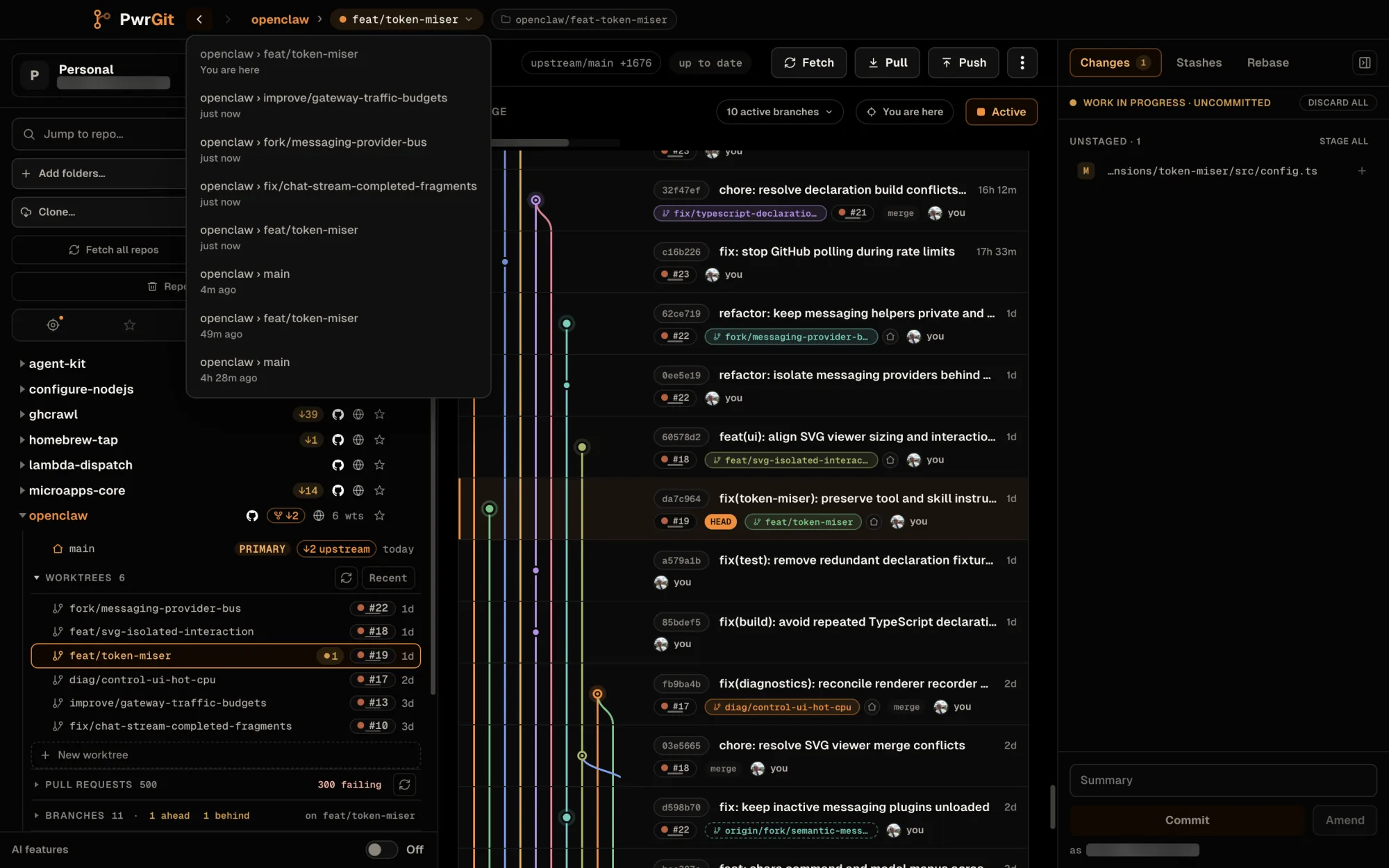
Right-click either chevron, or press and hold it, for the History menu: up to 12 entries in each direction, Forward entries above and Back entries below, with the current entry marked You are here. Each entry names the worktree, the commit that was open, and how long ago you left it. Picking one jumps straight there and keeps the rest of the history. From the keyboard, focus a chevron and press the context-menu key or Shift+F10.
You are here
You are here in the lineage graph’s toolbar scrolls the graph
to the selected worktree’s HEAD commit and reveals that worktree
in the sidebar — expanding its repository and scrolling to the
row. It has no keyboard shortcut. See History.