
Repositories
PwrGit indexes repositories from folders you nominate and lists them in the sidebar. The list is meant to survive being long: lenses narrow it, pins float the ones you care about, every row says what it would pull and push without being opened, and Command+K finds anything by name without scrolling at all — see Search and navigation.
Profiles
A profile is a workspace. It carries:
- a Profile name — a workspace label like
AcmeorPersonal. It appears in the window title and the Profiles menu. It is not your name. - a Commit email — the address commits are authored with while this profile is active.
- an optional Author name, when the name on the commit should differ from the git default.
- an optional Default org, which scopes forge searches in Clone to that organization or group.
- a Window theme, which follows General → Color theme unless you set one for this profile.
- a set of Repo folders — see below.
Each profile opens in its own window. The Profiles menu lists them all with New Profile… and Manage Profiles…, and the first nine get Command+1 through Command+9 (Ctrl+1–Ctrl+9 on Windows and Linux). Picking a profile opens its window, or focuses it if it is already open. The profile chip at the top of the sidebar names the profile and the address it commits as.
The commit identity is applied per commit
PwrGit does not write user.email into a repository’s
config to change your identity. It passes the profile’s identity
to each commit as it makes it, which means:
- Switching profiles changes nothing on disk. No repository is left configured for a company you have stopped working for.
- A repository you commit to from two different profiles gets the right address each time, with no per-repo setup.
- Commits made outside PwrGit are unaffected — your global and repo-local git config keep whatever they already said.
The commit box in the rail reads as <email> so you can see
which identity is about to sign, before it does. See
Commit.
Repo folders and discovery
PwrGit does not scan your disk uninvited. Each profile has a list of repo folders, and PwrGit searches those for git repositories:
- Five levels deep, and it stops descending at a repository — a checkout’s own subfolders are not searched for more repositories.
- It skips hidden folders (anything starting with
.) andnode_modules,dist,out,build,target,vendor,.cacheandLibrary, so a dependency tree full of vendored.gitfolders does not flood the list.
Add folders from Add folders… at the top of the sidebar, or from Settings → Profiles → Edit…. A profile with no folders can do little else: Clone… and Fork… stay disabled until one exists, because both need somewhere to put the result.
Repo folders are also what makes a repository belong to a
profile — a checkout under ~/work shows up in the profile whose
folders include ~/work.
When PwrGit looks again. A profile is rescanned when its window opens, at most once a day; whenever you change its folders; and promptly — at most once every ten minutes per repository — when a repository’s folder disappears, so a deleted checkout leaves the sidebar without waiting for tomorrow. A scan removes repositories only when every repo folder could be read: an unmounted drive does not empty the list. Repositories you cloned or forked through PwrGit are recorded as added by hand, and no scan removes them.
The sidebar
The sidebar is a tree: repositories at the top level, each expanding into its worktrees, pull requests, branches, tags and remotes. Selecting a worktree is what drives the rest of the window.
From the top, it holds:
- the profile chip and Jump to repo… (the Command Palette);
- Add folders…, then Clone… and Fork…;
- Fetch all repos and Try pull all, which run across the whole profile — see Sync;
- Repository maintenance… — see Maintenance;
- the lens strip, with Sidebar display options beside it (Group by folder brackets repositories under the repo folder they came from);
- the repository tree;
- at the bottom, the profile’s AI features switch — off by default, see AI features.
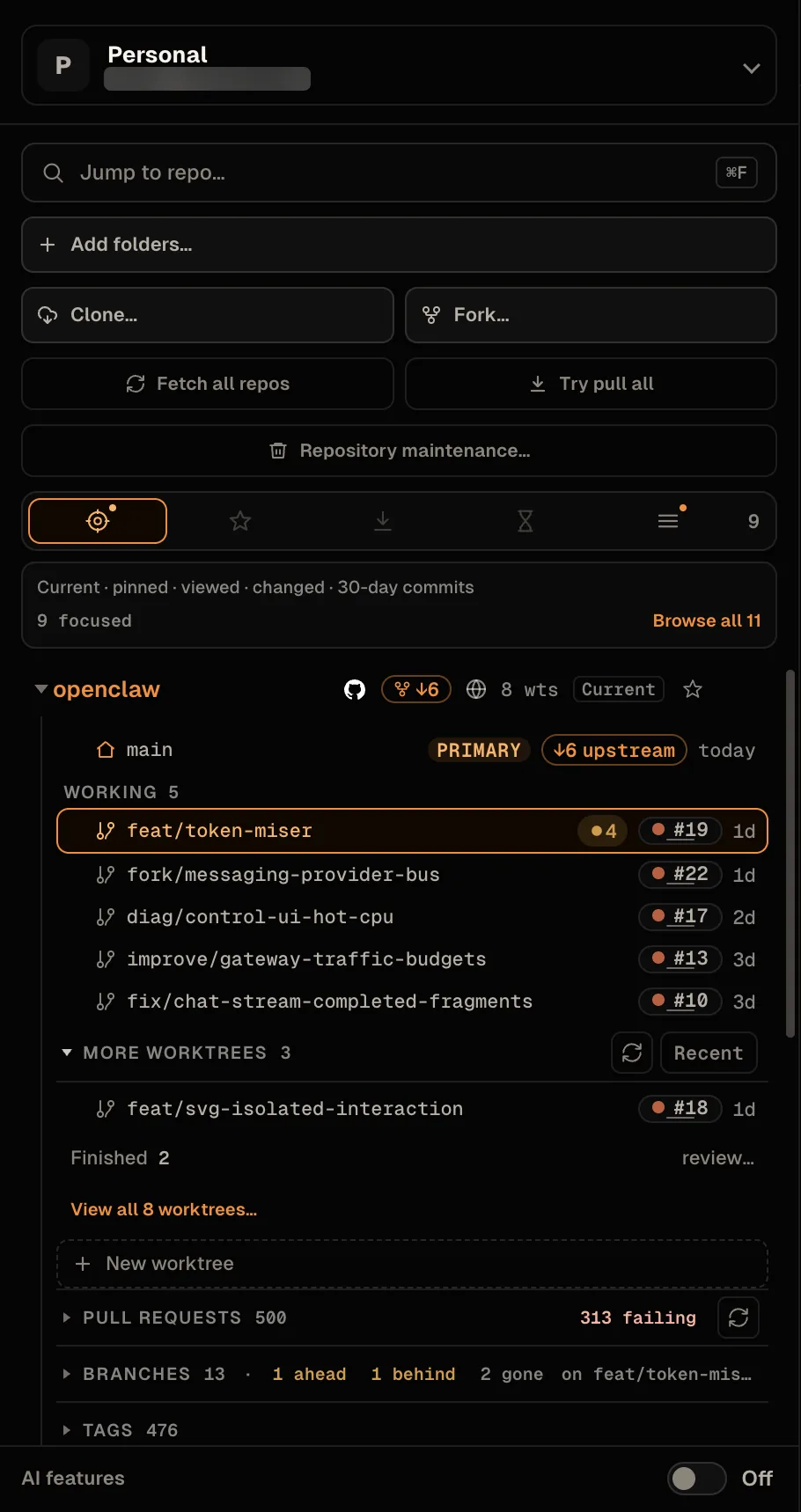
A repository row
Left to right, a repository row can carry:
| Mark | Means |
|---|---|
↓n |
The primary checkout is n commits behind its upstream. A collapsed repository still says it is behind. |
⑂ ↓n (outlined) |
A fork whose source has n commits the fork lacks. |
| Forge logo | Where the repository is hosted. Click it to open the repository’s page in your browser. |
| No-push mark | The forge says you cannot push here. Click it to fork — see Read-only checkouts. |
| Fork mark | The repository is a fork. |
| Visibility mark | Public, private or internal. Click it to ask the forge again. |
n wts |
How many linked worktrees it has. |
| Star | Pin the repository. |
| Reason pill | In the Focused lens only: Current, Pinned, Viewed, Changes or 30d — see Lenses. |
Forge marks need a connected CLI. A repository PwrGit has never been able to ask about carries no mark at all, which is different from one the forge declined to describe. Every mark has a hover card that opens on keyboard focus too.
The row’s ⋯ menu (named repository actions for screen readers):
- Fork owner/name… — see Forks.
- Manage remotes… — opens the refs browser on its Remotes tab. See Remotes.
- Repository setup… — hooks and ignore rules. See Repository setup.
- Copy path
- Reveal in Finder (macOS), Show in Explorer (Windows) or Show in folder (Linux).
- Refresh forge info — asks the forge again now, for a row whose identity never arrived.
Inside an expanded repository
An expanded repository draws its sections in this order:
- The primary checkout — the repository’s main working tree.
- Pinned — pinned worktrees, and pinned branches no worktree holds. See Branch pins.
- Working — in the Focused lens only, the linked worktrees with something going on.
- Worktrees — the linked worktrees, headed Other
worktrees once some are shown above, or More worktrees in
Focused. It draws up to six worktrees still in flight, then
Finished
nand View allnworktrees…. See Worktrees. - Pull requests — Merge requests on GitLab — the repository’s open requests across its forge remotes. See Pull requests.
- Branches, with
nahead,nbehind andngone chips on the heading. Each chip opens the refs browser filtered to those branches. - Tags.
- Remotes.
Long lists end in View all n …, which opens the refs
browser — the same rows, searchable, on tabs for Worktrees,
Branches, Tags, Remotes and Pull requests. Anything a sidebar row
can do, its refs-browser row can do too.
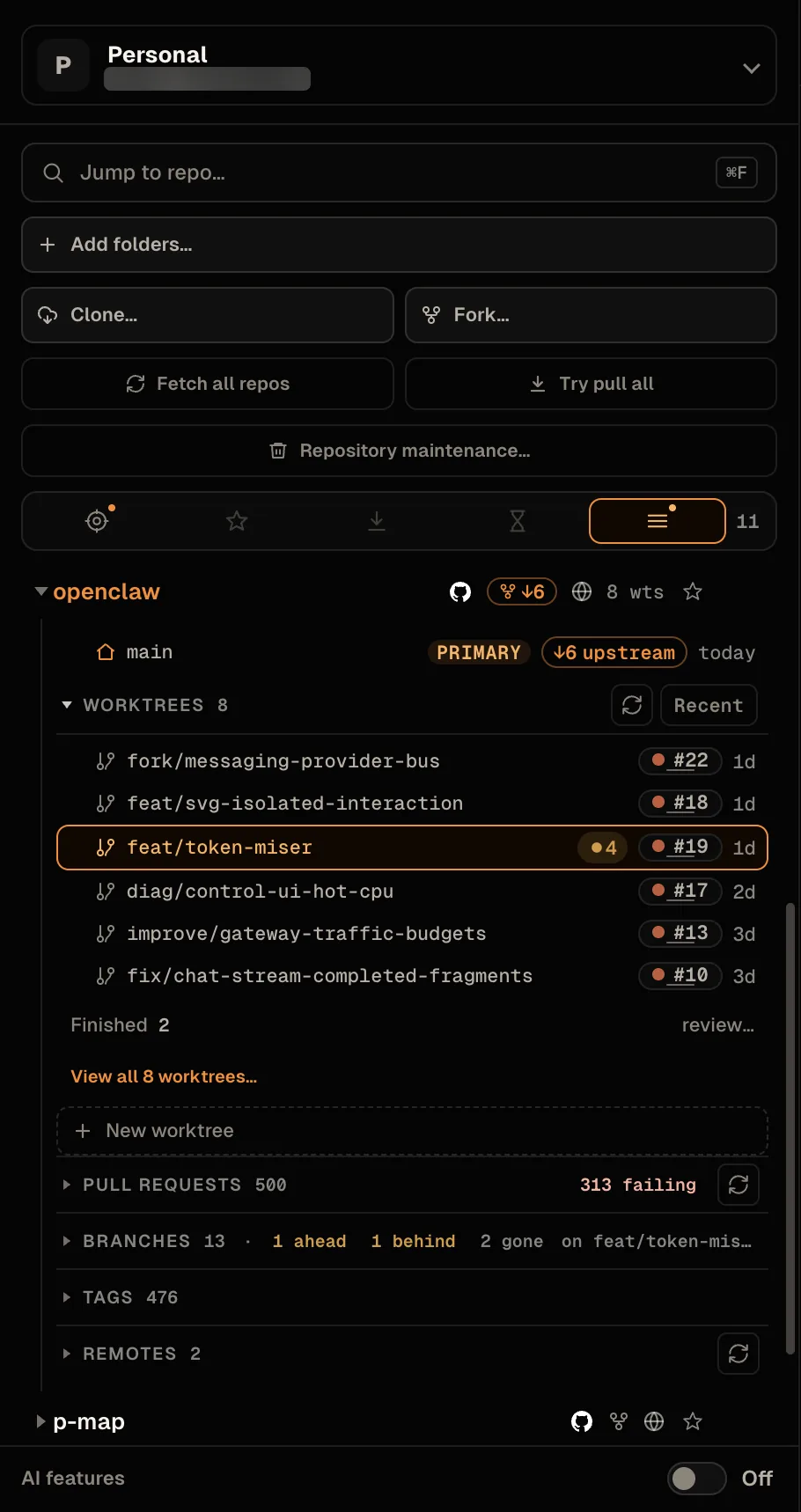
Arrangement and sort
- Arrangement. Drag pinned repositories to order them, or use Command+Shift+Up / Command+Shift+Down (Ctrl+Shift+Up / Ctrl+Shift+Down). The arrangement is remembered per profile.
- Worktree sort. Each repository has its own sort, cycled by the control on its row: Recent → Pinned → A–Z → Active. A drag-reorder inside a repository wins over all four and shows as Custom.
- The selected lens, the expanded repositories, the sort choices and the arrangement all survive a restart. Selecting a repository never re-sorts the rows under the pointer.
Remote status on every row
Rows report how far they are ahead of and behind their remotes
without being selected. PwrGit checks only the rows on
screen, and only while a PwrGit window is focused: each
repository at most once a minute, linked worktrees batched into
one git ls-remote --heads per remote, and only branches whose
tip moved are fetched. Resting the pointer on a row for
three-quarters of a second, or selecting it, checks it at once.
Local counts — uncommitted changes, ahead, behind — are
recomputed for visible rows every 30 seconds (every two minutes
while no PwrGit window is focused), and immediately when Git
changes a repository’s refs or index, including from a terminal.
The full rules, timeouts and network back-off are in Sync → Remote status.
Lenses
Five icon filters sit above the tree. Each icon’s hover card names its lens and count, a dot marks the lenses with anything in them, and the active one spells out its count.
| Lens | Shows |
|---|---|
| Focused | The current repository, pinned ones, ones you viewed in the last 30 days, ones with uncommitted, unpushed or unpublished work, and ones with a commit in the last 30 days |
| Pinned | Repositories you pinned, or that hold a pinned worktree or branch — drag to arrange |
| Behind | Repositories with a worktree behind its upstream |
| Stale | Repositories with worktrees safe to prune |
| All | Every indexed repository, A–Z |
Focused is a priority ladder, not a score: each repository
takes the first rule it matches, shown as its reason pill —
Current, Pinned, Viewed, Changes, 30d — and
sorts by it. It shows twelve repositories at first, then Show
all n focused. A new profile opens on All until there is
anything to focus on.
Stale counts a worktree that is clean and is not the primary checkout, the default branch, missing or locked — and whose pull request merged, or which is in the default branch or diverged and untouched for more than 14 days. See Finding prunable worktrees, or Maintenance to check every repository at once.
A lens with nothing in it is dimmed, and its hover card says what would fill it. The arrow keys move between the lenses you can enter.
Branch pins
Repositories, worktrees and local branches pin independently. Pin a branch from the star on its row in the refs browser, or with Command+P (Ctrl+P) on its result in the Command Palette.
- A pinned branch that no worktree holds is listed in the repository’s Pinned group, ready to check out.
- A worktree reads as pinned when its branch is. Pin
main, create a worktree on it later, and it is already in Pinned. - Renaming a branch moves its pin. A pin on a branch Git no longer has is dropped.
- Remote-tracking branches and pull requests have no local name to pin, so they carry no star.
Search
The Command Palette — Command+K or Command+F (Ctrl+K / Ctrl+F), or Jump to repo… — has its own page: Search and navigation.
Clone
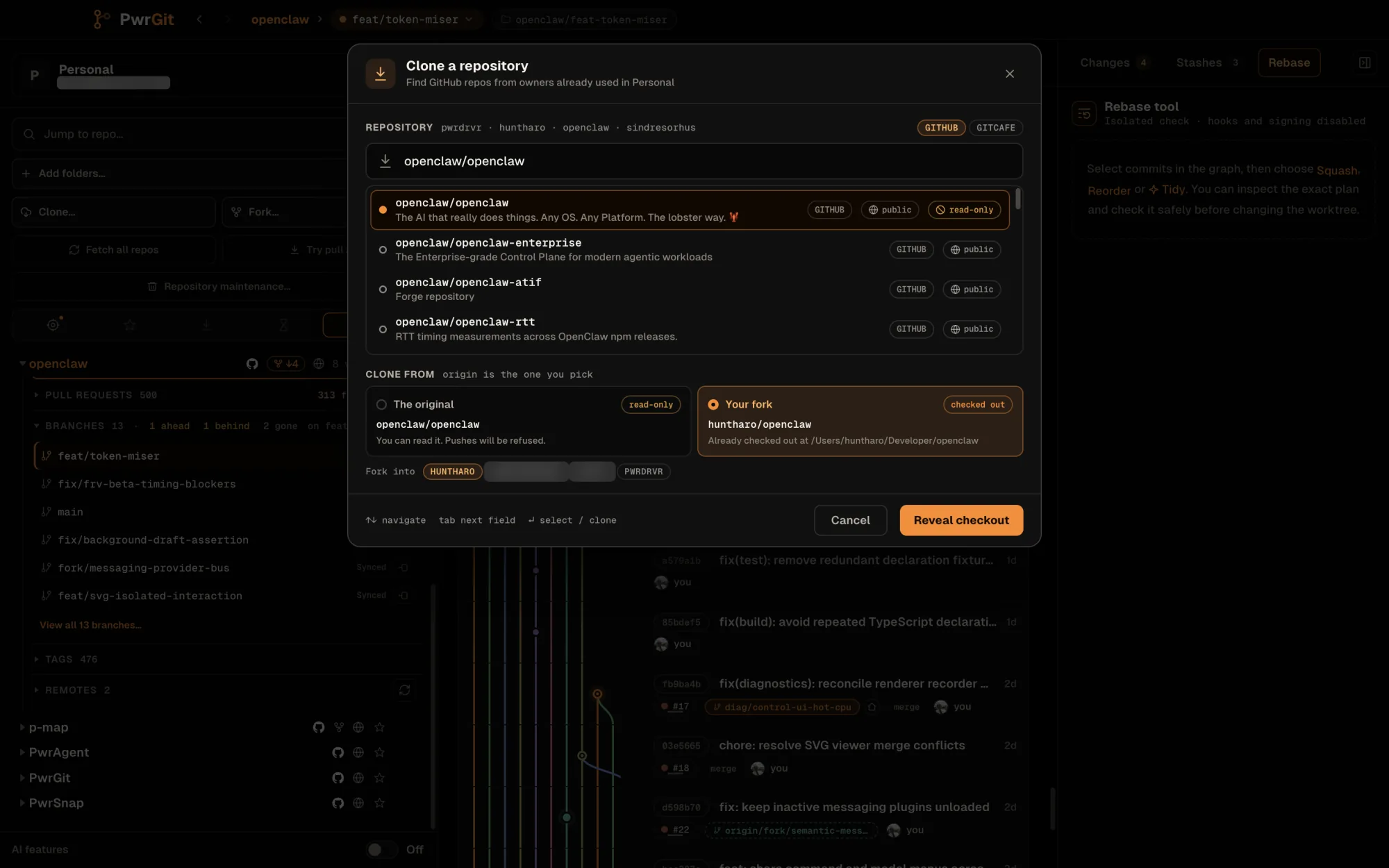
Clone… in the sidebar opens a dialog with three parts: what to clone, how to connect, and where to put it.
The source box searches your forge as you type — it does not
enumerate every repository you can see first, so the dialog is
usable immediately. You can also type owner/name directly. A
half-typed owner prefix like pwrdrvr/micro is treated as an
owner-scoped search rather than an exact miss.
- Clone from — The original or Your fork, when the
forge knows both. Your fork is preselected only when you cannot
push to the original and the fork already exists; PwrGit never
creates a repository by default. A fork clone keeps the original
as
upstream. If your fork is already checked out, the dialog offers to reveal that checkout instead of cloning it again. - Clone with — SSH, HTTPS, or the forge’s CLI (GitHub CLI, GitLab CLI). The CLI option needs that CLI installed and signed in.
- Check out to — your repo folders and any nested folder under them, recently used destinations first.
Progress reports as it runs. A cloned repository is listed straight away and fetches its forge details during the session.
Fork
Fork… — in the sidebar, on a repository’s ⋯ menu, or on a remote — forks on the forge and either clones your copy or switches an existing checkout over to it. Forks, fork routes, Fork in place and Switch origin to my fork are covered in Forges → Forks; cloning your fork in Clone your fork; pulling from a fork’s source is in Sync.
Remotes
The Remotes section of an expanded repository, and the refs browser’s Remotes tab (⋯ → Manage remotes…), list every remote with its fetch and push URLs and its branches.
- Add remote…, edit one — name, Fetch URL, and a separate Push URL when it differs (leave it empty to use the Fetch URL both ways) — or Remove one, after a confirmation. This works on an empty repository too, so a repository with no commits can still get its first remote.
- Fetch fetches that remote alone.
- On a fork, the card draws the route — the original, this
checkout, and your fork, with where the current branch pulls from
and pushes to. For a checkout cloned from a fork that has no
remote pointing at the fork’s parent, PwrGit offers to add and
fetch it, under
upstreamor another name if that one is taken. - Remote branches page in rather than loading every ref at once,
ending in View all
nbranches on remote…, so a repository with thousands of branches stays responsive.
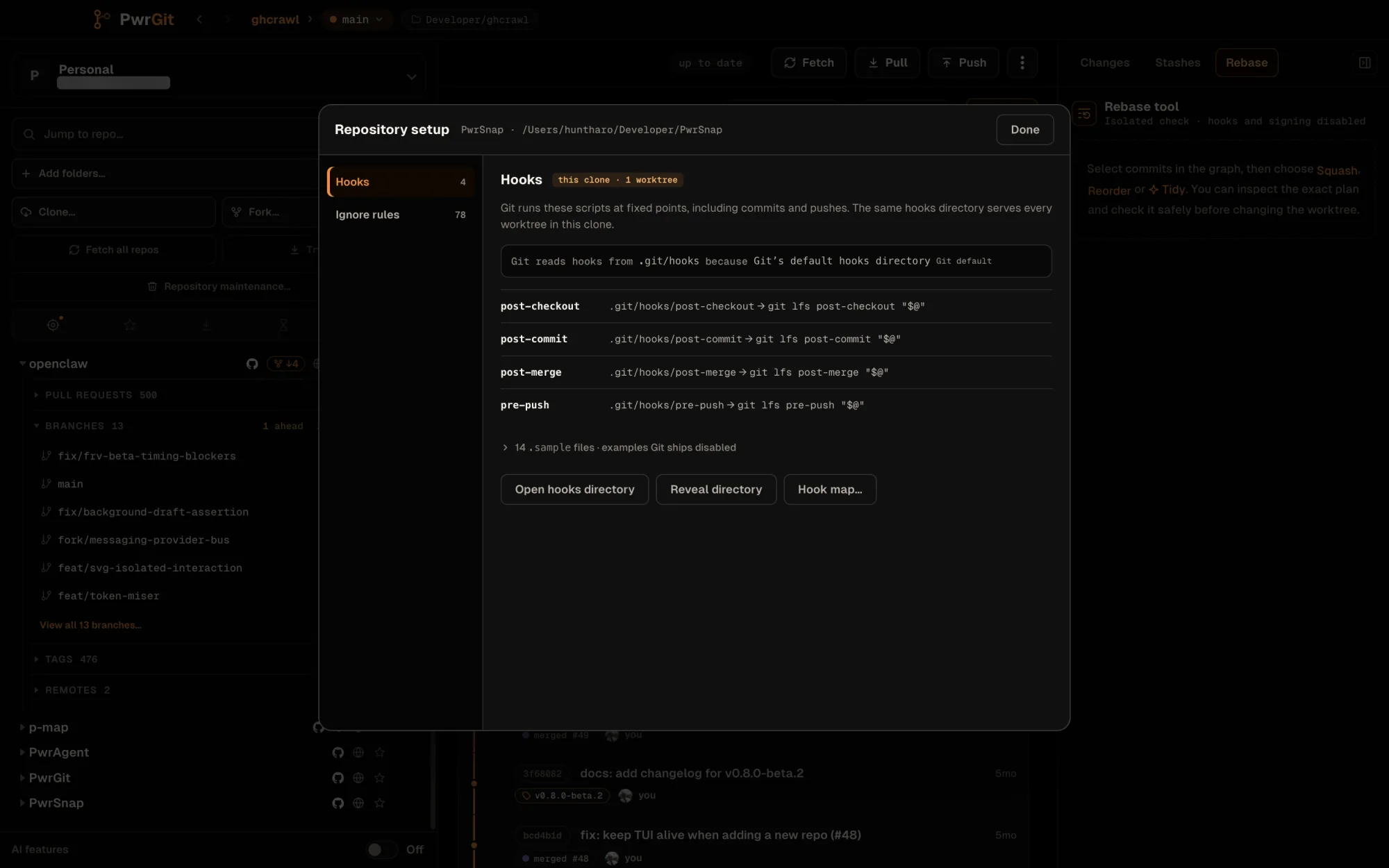
Repository setup
⋯ → Repository setup…, or type setup in the Command Palette,
opens a sheet showing what Git will do in this repository that
isn’t in its files. It reads; the one thing it writes is this
clone’s own exclude file, when you ask it to.
Hooks names the directory Git reads hooks from and why —
Git’s default .git/hooks, or a core.hooksPath and where that
setting came from. Each active hook shows what it calls, when it
last ran, how long it took, and whether it passed or its exit
code. Hooks left in .git/hooks while core.hooksPath points
elsewhere are listed as not run, with a warning — and a
specific one when a shadowed pre-push calls Git LFS, because LFS
files may then not upload when you push. Hook map… lays out
every hook Git can run at each operation.
Ignore rules lists the layers Git consults, in order:
| Layer | File | Applies to |
|---|---|---|
| Team rules | .gitignore |
Committed, shared with everyone. Open in editor. |
| This clone | .git/info/exclude |
This checkout only. Edit inline. |
| This Mac | ~/.config/git/ignore |
Every repository on this machine, whatever the platform — the label reads This Mac on Windows and Linux too. Open file. |
Test a path answers whether a path is ignored, and if so by which file, line and pattern.
Not yet
- There is no way to remove a single repository from the sidebar while its folder still exists under a repo folder; the next scan would find it again. Remove the repo folder, or move the checkout.